Users, roles and permissions
Every person who signs in to POSMaster is a user. Each user has one role, and the role decides what that person may see and do. Under Administration you find Users and Roles & permissions.
Users
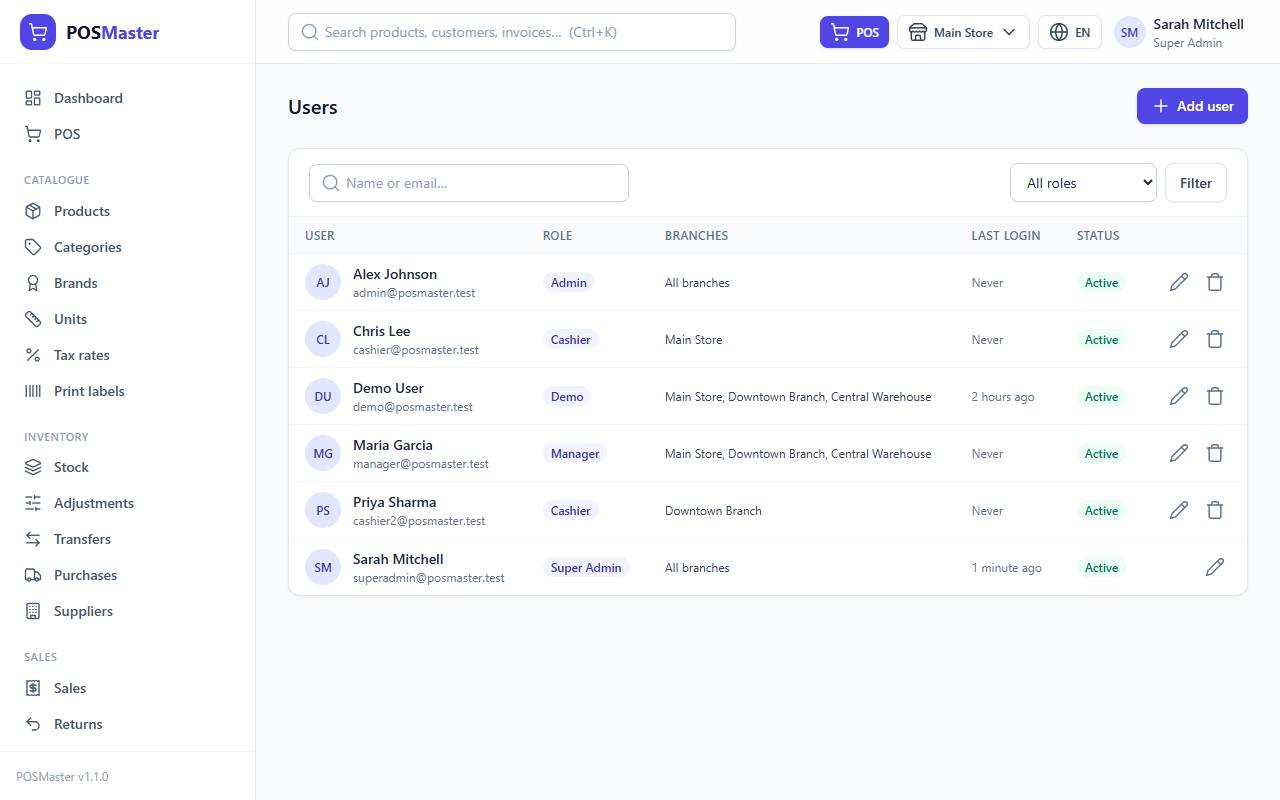
Open Administration → Users (permission users.view). The table shows each user with their avatar initials, email, Role, Branches, Last login and Status. Search by name or email, or filter by role.
Add a user
- Click Add user.
- In the Account card fill in:
- Name and Email (required; the email is the login and must be unique).
- Phone (optional).
- Password and Confirm password: at least 8 characters.
- Language: the language this person sees the app in. They can change it later.
- Active — can sign in: untick to block the person without deleting them.
- In the Access card choose:
- Role: pick one of the roles (see below).
- Branches: tick every branch this person may work in. Super Admin and Admin can use every branch, so the boxes do not matter for them.
- Click Save user.
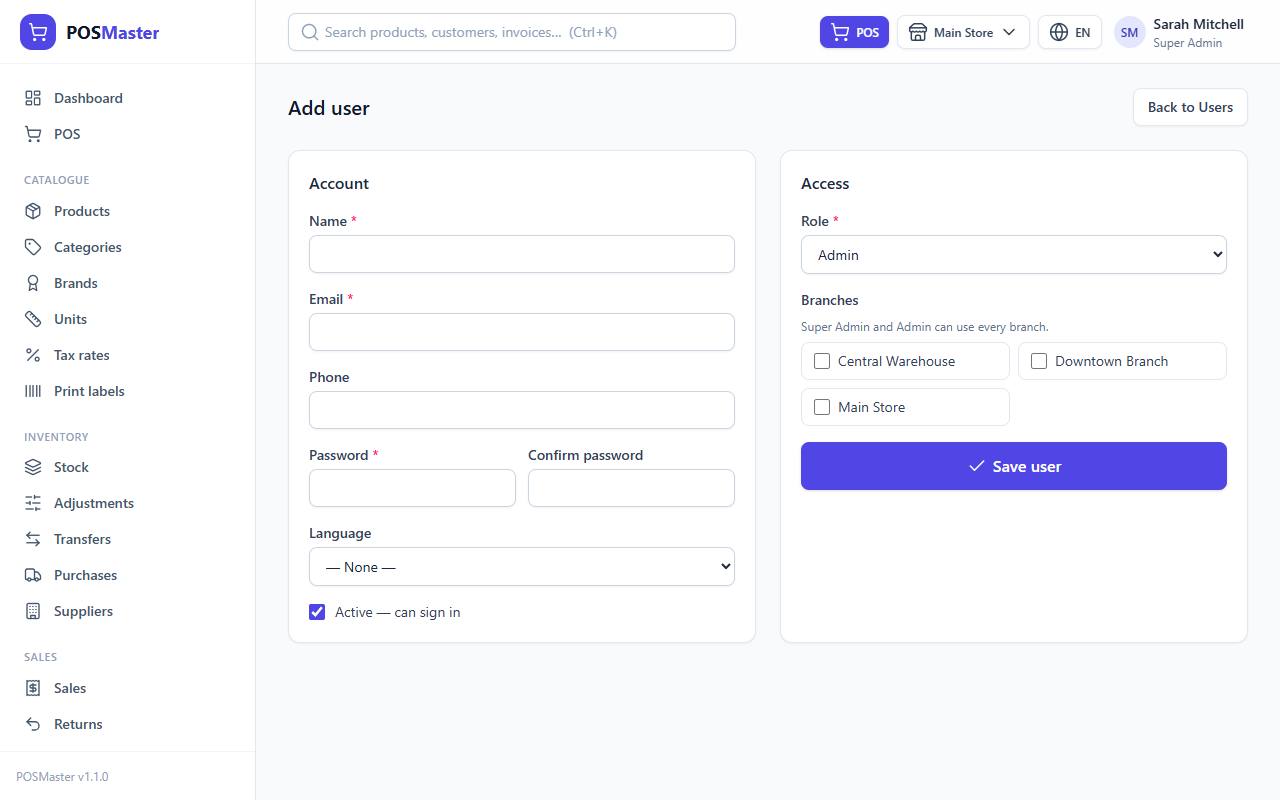
You need users.create.
Edit a user
- Click the pencil icon next to the user.
- Change what you need. Leave Password empty to keep the current password.
- Click Save user.
Rules that protect you:
- You cannot make your own account inactive, so you can never lock yourself out.
- Only a Super Admin can create, edit or assign the Super Admin role. Other roles do not even see it in the list.
- You cannot change your own role if you are a Super Admin.
Delete a user
Click the trash icon and confirm (users.delete). The user can no longer sign in, but their past sales and records stay. You cannot delete your own account, and you cannot delete the last Super Admin. In demo mode deleting is blocked.
Tip: When an employee leaves, untick Active instead of deleting. You keep a clean history and can switch the account back on later.
Passwords
- Users change their own password in My profile (see Activity log and your profile).
- If someone forgets theirs, an administrator edits the user and types a new password.
- The backups permissions (view, create, restore, delete) belong to the Super Admin only by default, because a backup holds every customer and every password hash. See Backup and restore.
- While demo mode is on, nobody can change a password, not even the Super Admin. The password fields are not shown when you edit a user.
- After five wrong sign-in attempts in a row for the same email and address, the login is paused for a short time.
Roles
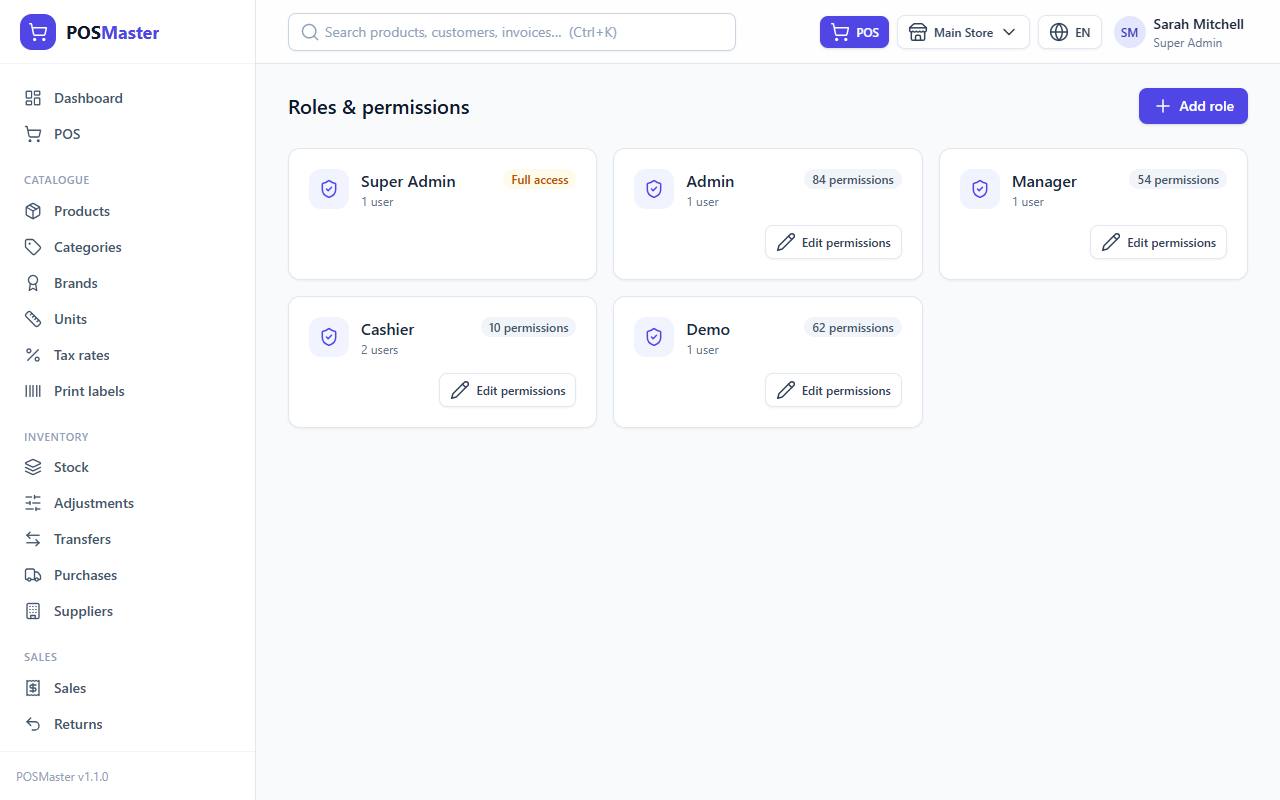
Open Administration → Roles & permissions (permission roles.view). Each role is a card with the number of users and the number of permissions. Edit permissions opens the role; the trash icon deletes a role that has no users.
The default roles
| Role | What it can do |
|---|---|
| Super Admin | Everything, always. It cannot be edited or deleted, and the card says Full access. It is the only role that can switch Demo mode on and off, manage Super Admin accounts and manage languages by default. Keep at least one. |
| Admin | Everything except languages and the Demo mode switch. Admin sees all branches and can manage users, roles, branches and settings. |
| Manager | Runs the shop day to day: dashboard, POS, products and catalogue, labels, stock (adjust and transfer), purchases (including returns to suppliers), sales (add payments, returns, offline sales review), quotations, customers, suppliers, coupons, gift cards, promotions, loyalty (including manual adjust), expenses and all reports. A Manager cannot delete anything, cannot void a sale, and has no access to settings, users, roles, branches, languages or the activity log. |
| Cashier | Works at the register: dashboard, POS, view sales, view products, view and add customers, view and create quotations, view gift cards and view loyalty points. A Cashier cannot take returns, void sales, change stock or see reports. |
| Demo | For public previews. Broad view, create and edit rights, but no deletes, no voiding, and no editing of settings, users, roles or languages. See Demo mode. |
These five roles are created by the installer. You can edit the permissions of Admin, Manager, Cashier and Demo, or add your own roles.
Add a role
- Click Add role.
- Type a Role name, for example "Stock keeper" or "Supervisor".
- Tick the permissions in the matrix (see below).
- Click Save role.
The new role now appears in the Role list of the user form.
The permission matrix
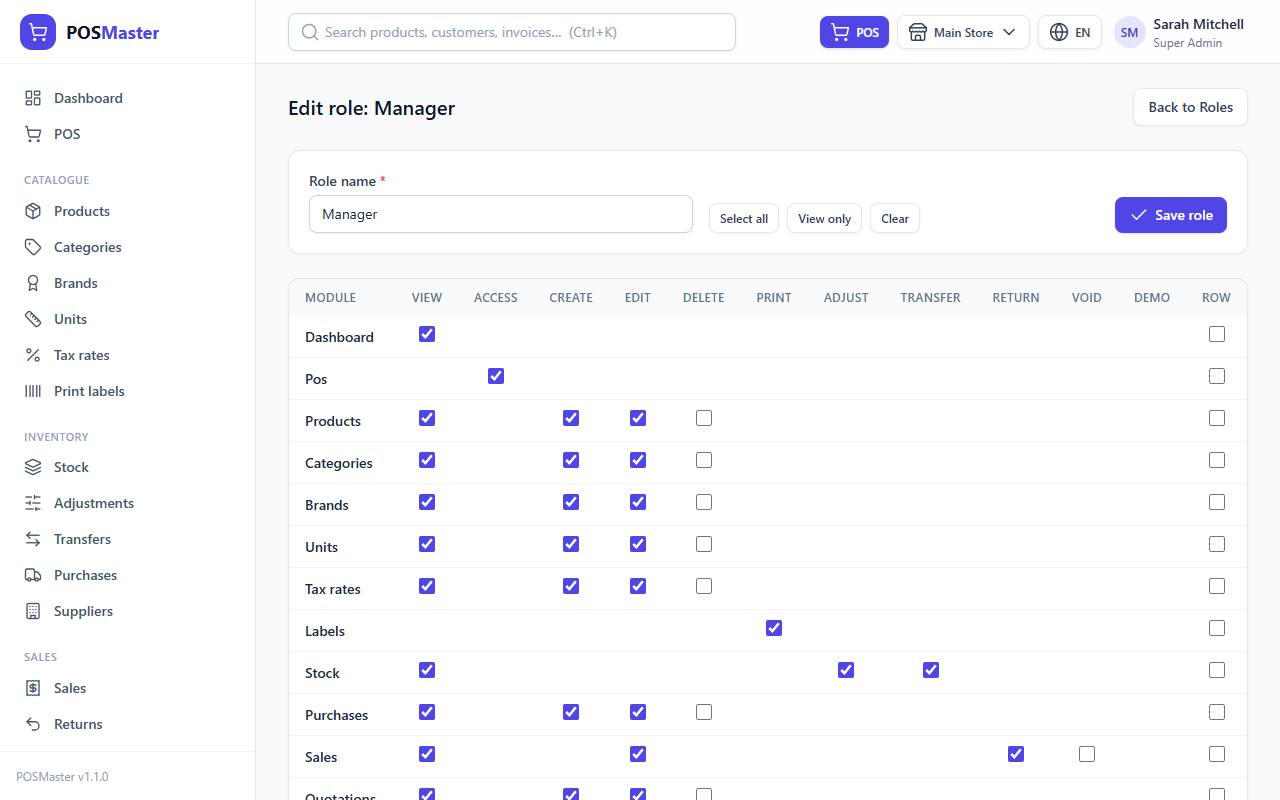
The matrix has one row for each module and one column for each action. A box only exists where the action makes sense for that module. A permission is written as module.action, for example products.edit.
| Action | What it means |
|---|---|
| View | See the list and open records. Also makes the menu item appear. |
| Access | Use the POS (pos.access). |
| Create | Add new records. |
| Edit | Change existing records. For sales: add a payment to a sale with a balance due. |
| Delete | Delete records. Blocked in demo mode. |
Print labels (labels.print). |
|
| Adjust | Adjust stock (stock.adjust) or loyalty points (loyalty.adjust). |
| Transfer | Move stock between branches (stock.transfer). |
| Return | Take back goods on a sale (sales.return), or send goods from a received purchase back to the supplier (purchases.return). |
| Offline | Open Sales → Offline sales review and mark problems from offline sales as resolved (sales.offline). |
| Void | Cancel a whole sale (sales.void). |
| Demo | Switch Demo mode on or off (settings.demo). |
Note: Version 1.2 added two permissions:
purchases.return(Supplier returns) andsales.offline(Offline mode). When you update, they are given to the Admin, Manager and Demo roles automatically. Roles you created yourself do not get them: tick them in the matrix if those people need them. Cashiers do not needsales.offlineto sell while offline;pos.accessis enough.
The modules are: Dashboard, POS, Products, Categories, Brands, Units, Tax rates, Labels, Stock, Purchases, Sales, Quotations, Customers, Suppliers, Coupons, Gift cards, Promotions, Loyalty, Expenses, Expense categories, Reports, Branches, Users, Roles, Languages, Settings and Activity.
Shortcuts above the matrix:
- Select all ticks every box.
- View only ticks only the View and Access boxes: a safe starting point for a read-only role.
- Clear unticks everything.
- The Row box at the end of each line ticks or unticks the whole module.
Click Save role when you are done. The change applies to every user of that role the next time they open a page.
Tip: Build a new role by clicking View only and then adding the few extra boxes it needs. It is safer to give too little and add later than the other way round.
Note: Every menu item, page and button is checked against these permissions on the server. Hiding a button is not the only protection: if a person without the permission opens the address by hand, the app answers "403 Forbidden".
Delete a role
A role can be deleted only when no user has it. Super Admin can never be deleted.
Super Admin always has everything
The Super Admin role passes every permission check, whatever the matrix says. That is why its card shows Full access and has no Edit permissions button. This protects you: even if someone changes the other roles by mistake, the Super Admin can always repair things.