Kitchen and prep tickets
A prep ticket (preparation ticket) tells the kitchen, the bar or the workshop what to prepare. It lists the items, their quantities and any notes, with no prices. It is useful for cafés, bakeries, juice bars and any shop that prepares items to order.
Prep tickets are off by default. When they are on, a ticket prints after each sale that contains at least one item from a category you marked, and the cashier can also send the cart to the kitchen before payment.
Turn on prep tickets
You need the settings.edit permission.
- Go to Settings → POS & scanner and find the Kitchen / preparation tickets section.
- Tick Print preparation tickets for categories marked “Print prep ticket”.
- Leave Print the ticket automatically after each sale ticked if the ticket should print by itself after every sale. Untick it if the cashier should print it with a button instead.
- Click Save settings.
Choose which categories get a ticket
Only items from marked categories appear on a prep ticket. Mark, for example, Food and Drinks, but not Snacks or Merchandise.
- Go to Catalogue → Categories.
- Edit a category (or add a new one).
- Tick Print prep ticket (kitchen / bar) when sold.
- Save.
The category list has a Prep ticket column that shows Yes for marked categories. See Categories.
Add a note to an item
Notes tell the kitchen how to prepare an item, for example no sugar, extra hot or gift wrap.
- In the POS cart, click the pencil button on the line.
- In Note for this item, type the note (up to 190 characters).
- Click Save. The pencil changes colour so you can see the line has a note. Hover over it to read the note.
Click Remove in the same window to delete the note. Notes are kept when you hold the sale, are saved with the sale line, and are printed on the prep ticket under the item.
Tip: A note belongs to the whole line. Adding the same product again only raises the quantity of that line, so write the note for all of them, for example 2 with sugar, 1 without.
Print the ticket after a sale
When prep tickets are on and the sale has at least one item from a marked category:
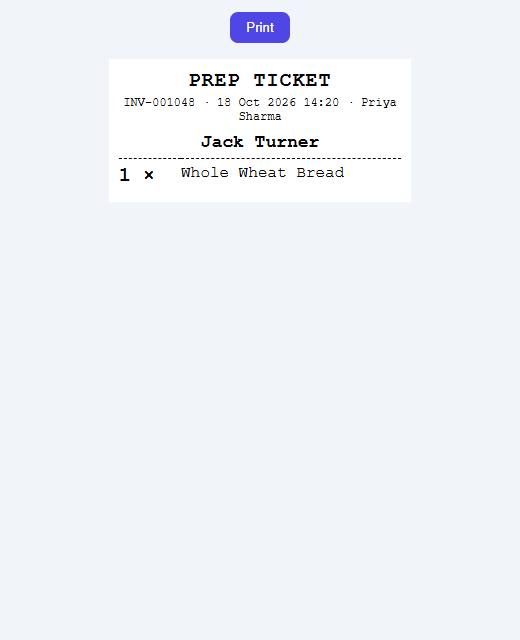
- With Print the ticket automatically after each sale ticked, the print window for the ticket opens by itself after Complete sale.
- In any case the success window shows a Print prep ticket button. Click it to print the ticket (again).
The ticket shows the invoice number, the date and time, the cashier, the customer's name (or the sale note when there is no customer), and each item to prepare with its quantity and note. Items from other categories are left out. A sale without any marked items prints no ticket.
Send to kitchen before payment
For table orders and phone orders the kitchen can start before the customer pays.
- Add the items to the cart, with their notes.
- Optionally select the customer. Their name is printed in large letters on the ticket, so you can use it as a reference (for example a customer named Table 4).
- Click Kitchen at the top of the POS (on smaller screens only the printer icon is shown; hover to see Send to kitchen).
- The ticket's print window opens and a message says "Sent to kitchen".
- Hold the sale if the customer pays later, and serve the next customer.
A ticket sent this way gets a number starting with K- (for example K-143205, the time it was sent). If none of the items belongs to a marked category, you see "Nothing in this cart needs a preparation ticket."
Note: With automatic printing on, the sale prints its own prep ticket again when it is paid. Untick Print the ticket automatically after each sale if you always send orders to the kitchen with the Kitchen button first.
The Kitchen button only appears when prep tickets are turned on in the settings. It does not work while the POS is offline.
Printer and paper
Prep tickets print through the browser's print window, the same way as receipts. They use the width of your Receipt paper setting (Settings → Sales & receipts): 58 mm, or 80 mm (also when the receipt paper is A4). The text is large and bold so it can be read from a distance.
To print tickets on a separate kitchen printer, choose that printer in the print window. All marked categories go on one ticket per sale; separate tickets for kitchen and bar are not supported.
Tip: For silent printing without the print window, use your browser's kiosk-printing option, as for receipts. See Thermal printer margins and blank paper at the end.