First steps after installing
You installed POSMaster and signed in. This page is a checklist that takes you from an empty system to your first real sale. It takes about 30 minutes for a small shop.
Note: If you installed with demo data, you can practise every step on the demo shop. For a real shop, install again without
--demo, or importschema.sql. See the installation pages.
The checklist:
- Change the default password (if you see the red banner)
- Fill in your business settings
- Set up your branches
- Create your users
- Add units, tax rates, categories and brands
- Add your products
- Print labels for products without a barcode
- Make a test sale
- Turn demo mode off
Change the default password
If you installed with schema.sql, a red banner says "You are using the default password from the installer". Click Change password, enter the current password (ChangeMe-123), type a strong new password, and save. Do this first.
Set your business settings
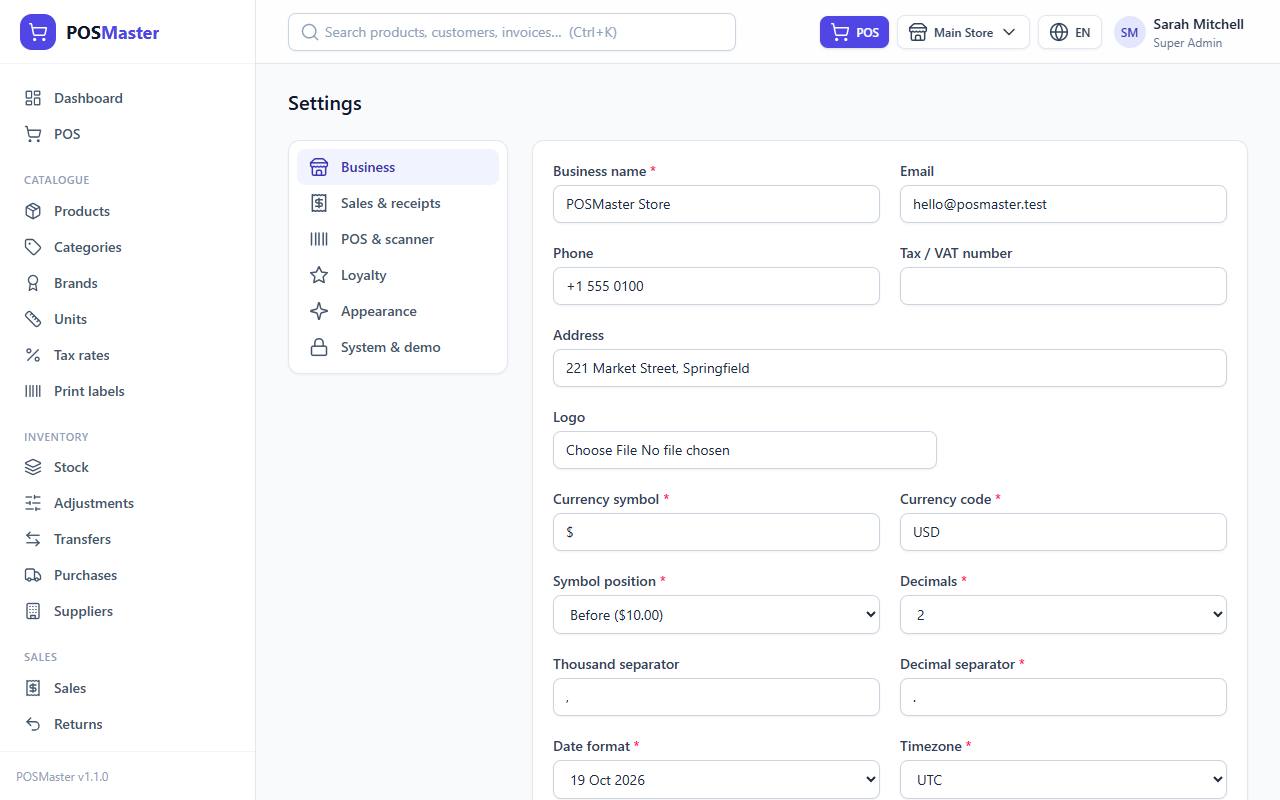
- Click Settings in the left menu (under Administration). The Business tab opens first.
- Enter your Business name, Phone, Email and Address. They appear on receipts.
- Enter your Tax / VAT number if you have one.
- Upload your Logo.
- Set the Currency code (for example USD, EUR or INR) and the Currency symbol.
- Choose the Symbol position (before or after the number), the Decimals, the Decimal separator and the Thousand separator.
- Pick your Date format and your Timezone.
- Click Save settings.
Tip: Choose your timezone carefully. Reports and the time on every receipt use it. If dates look wrong later, this is the first place to check.
Then open the Sales & receipts tab to set the invoice prefix, receipt paper size (58 mm, 80 mm or A4), receipt header and footer, and whether sales are allowed when stock is 0. Every field is explained in Settings.
Set up your branches
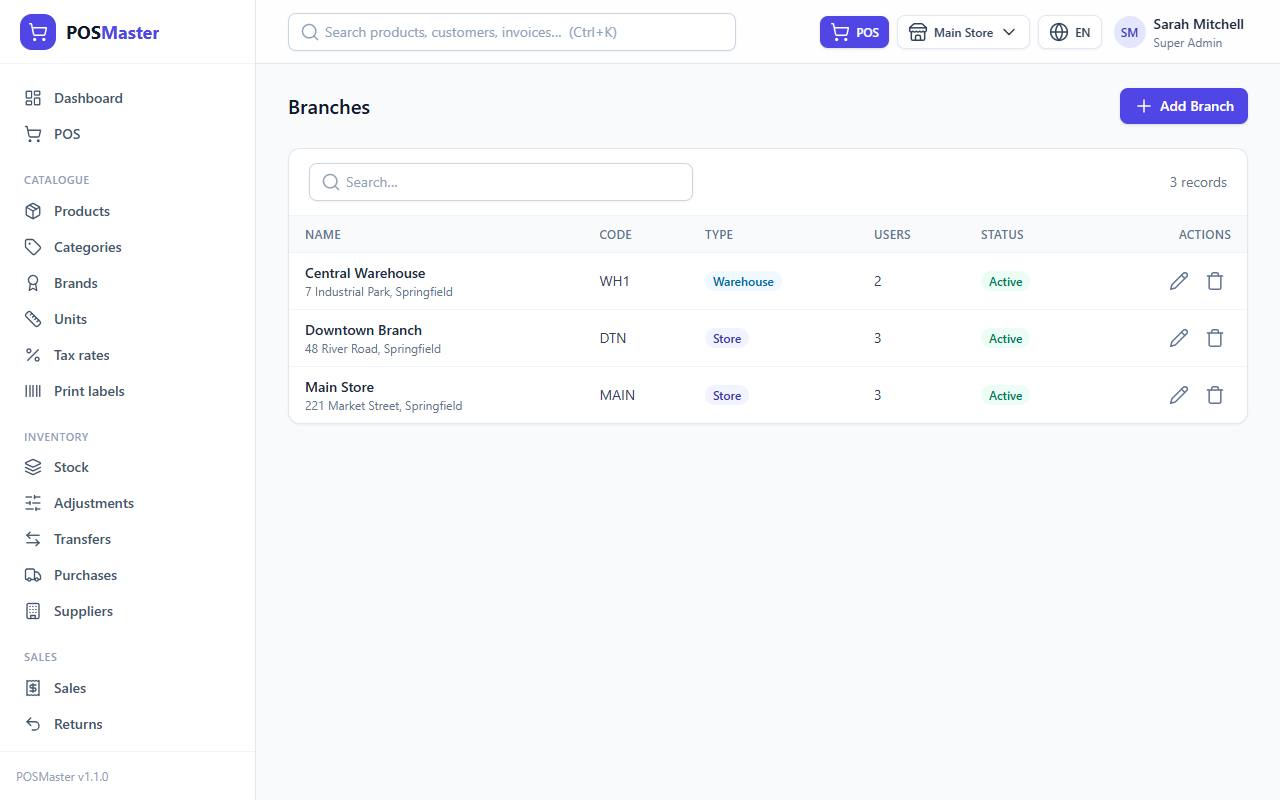
A branch is a shop or a warehouse. Each branch has its own stock.
- Click Branches in the left menu.
- A new install has one branch called Main Store. Click it and rename it to your shop name.
- To add another shop or a warehouse, click the add button and fill in the name, phone, email and address.
- Tick This is a warehouse (stock only, no POS sales) for a place that only stores goods. You cannot sell from a warehouse.
- Click Save.
If you have more than one branch, you can switch the active branch from the top bar. Stock, sales and reports follow the branch you choose.
Create your users
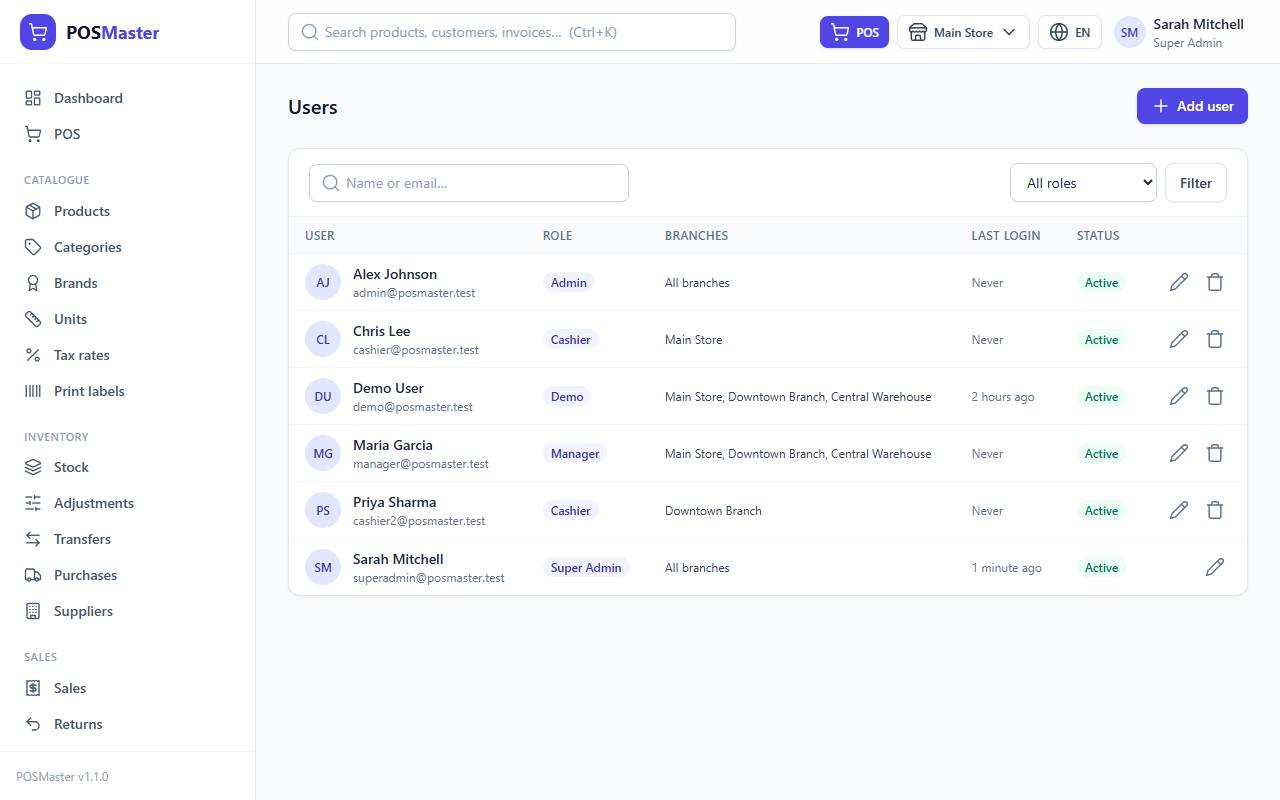
- Click Users in the left menu, then add a user.
- Enter the name, email and a password (at least 8 characters).
- Choose a Role. Cashier can sell. Manager can also manage stock, purchases and reports. Admin can do almost everything. Roles and what each can do are in the Roles & permissions menu.
- Select the branches this person may work in.
- Make sure Active — can sign in is ticked, then click Save user.
Note: A user who is not active cannot sign in. Give every person their own account, so the activity log and the reports show who did what.
Add units, tax rates, categories and brands
Before you add products, set up the lists that products use. They are all under Catalogue in the left menu.
- Units. The installer adds common units such as piece and kg. Add others you need, for example "box of 12".
- Tax rates. Add the VAT or sales tax rates you charge, for example 5% and 15%. In Settings → Sales & receipts you can choose the default tax for new products.
- Categories. Group your products, for example Drinks, Snacks, Cleaning.
- Brands. Add the brands you sell. This is optional.
Tip: You can skip categories and brands for now. If you import products from a CSV file, missing categories and brands are created for you.
Add your products
You can add products one by one or import many at once.
Add one product
- Click Products in the left menu, then the add button.
- Enter the Product name, Category, Unit, Price and Cost.
- Leave the barcode empty to get an automatic EAN-13 code, or type or scan the barcode that is printed on the product.
- Enter the Opening stock. It goes into the branch you are working in.
- Click Save product.
Import products from a CSV file
- Open Products and click Import.
- Click Download template and open it in Excel or Google Sheets.
- Fill in one row per product. Rows with the same name become variants of one product.
- Save the file as CSV.
- On the import page, click Upload CSV file and choose your file, then click Import.
Products that already exist (same name) are skipped, and missing categories and brands are created.
Warning: Always check a few products after importing. Open one and confirm the price, cost, unit and tax.
Print labels
Products without a barcode need a label so the cashier can scan them.
- Click Print labels under Catalogue.
- Search for products or scan their barcode to add them to the list.
- Choose the sheet: A4 with 24, 40 or 65 labels, or a label printer roll (50 × 30 mm).
- Choose what to show: barcode, QR code or both, plus the name, price, SKU or business name.
- Click Preview & print.
Tip: Print a test on plain paper first, then hold it against a real sticker sheet to check the alignment.
Make a test sale
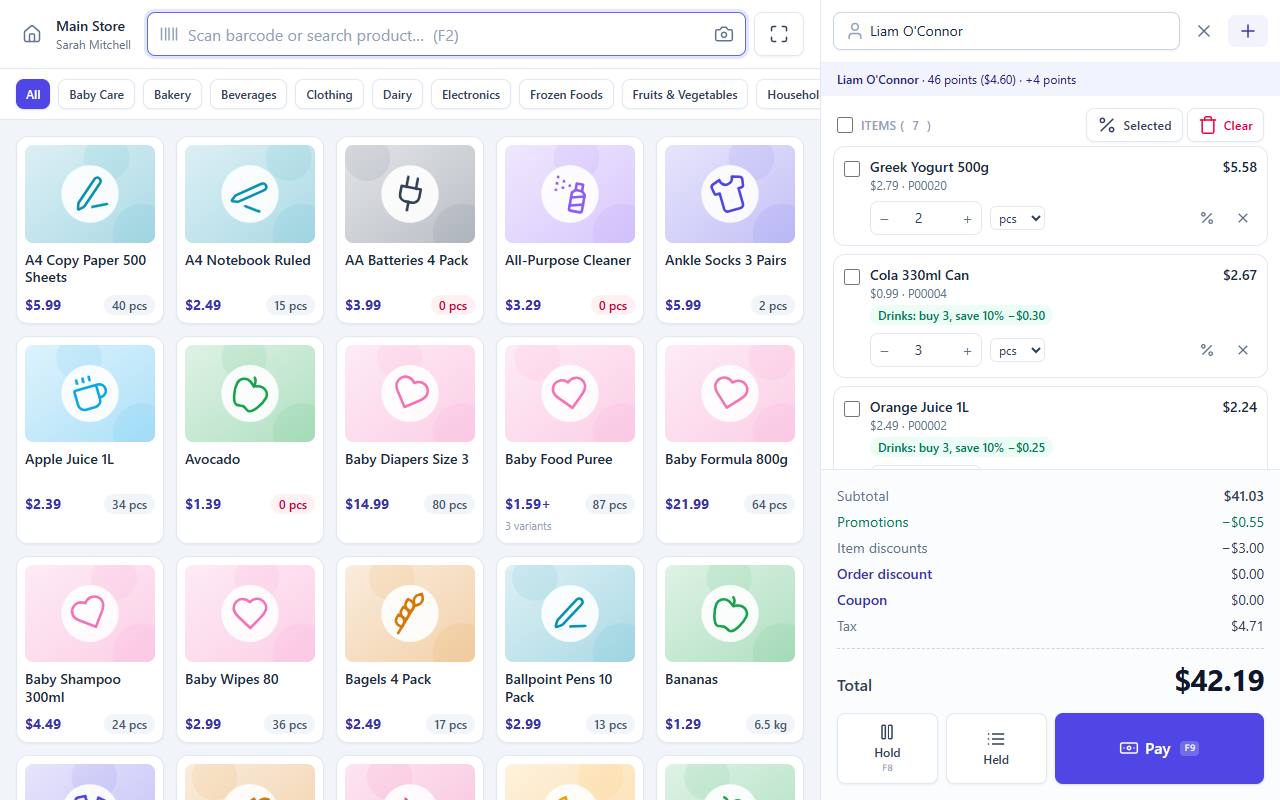
- Click POS in the left menu.
- Scan a product or type its name in the search box. Press F2 to jump to the search box.
- Press F9 to open the payment window.
- Choose Cash, enter the amount, and complete the sale.
- Print or view the receipt.
- Open Sales in the left menu and check that the sale is there. Open Stock and check that the quantity went down.
If you get "Not enough stock", add stock with a purchase or an adjustment first. The full guide is in Point of sale (POS).
Tip: If your first test sale shows odd dates or amounts, go back to Settings → Business and check the timezone and currency format.
Turn demo mode off
Demo mode blocks all deleting and protects passwords, roles, languages and business settings. It is meant for showing the system, not for running a shop.
- A clean install (
pos:installorschema.sql) already has demo mode off. You have nothing to do. - If you installed with demo data and want a real shop, the safest way is to install again as a clean shop.
- Otherwise run
php artisan pos:demo offon the server. Demo mode cannot be turned off inside the app: the switch in Settings → System & demo only turns it on, and the tab is hidden while demo mode is on.
Warning: If your
.envfile hasPOS_DEMO_LOCK=true, evenpos:demo offrefuses. Set it tofalsein.env, runphp artisan optimize:clear, thenphp artisan pos:demo off.
Before you go live
- Change every default and demo password.
- Check
APP_ENV=productionandAPP_DEBUG=falsein.env. - Set up regular backups: see Update, backup and restore.
- Train your cashiers with a few practice sales.