Settings
Settings control how the whole app looks and behaves. Open Administration → Settings. You need settings.view to see the page and settings.edit to save changes. Without the edit permission the fields are shown but locked.
The page has seven tabs on the left. Each tab has its own Save settings button and saves only its own fields, so switching tab does not lose anything you saved, but unsaved changes on a tab are lost if you leave it.
| Tab | What it is for |
|---|---|
| Business | Shop name, contact details, logo, currency, date and time zone |
| Sales & receipts | Document numbers, receipt layout and paper, stock rules |
| POS & scanner | Barcode scanning, the POS product grid, the customer display and kitchen tickets |
| Loyalty | Points for regular customers |
| Appearance | Theme colour and list length |
| Sending invoices, receipts and other documents by email | |
| System & demo | Demo mode, reset and version information |
Note: In demo mode saving settings is blocked, except for a Super Admin on a server that is not locked.
Business
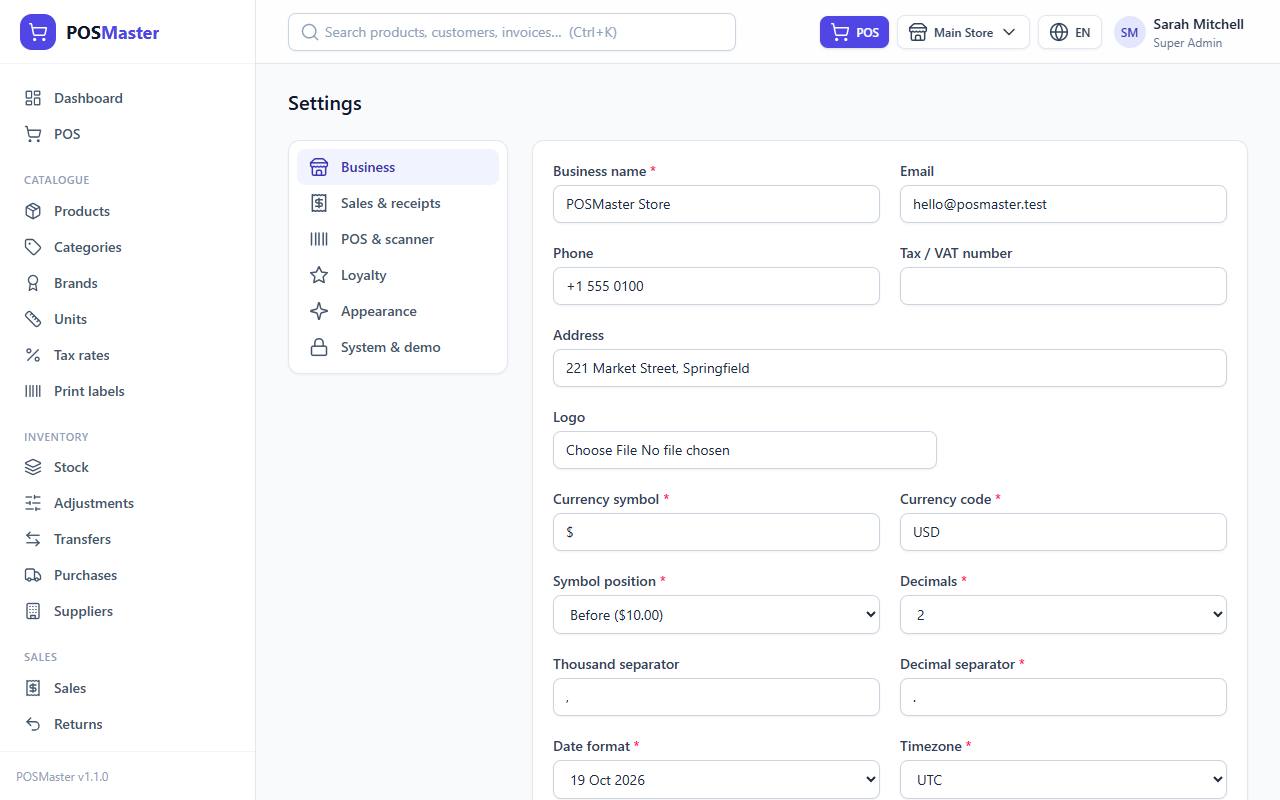
Your shop identity and how money and dates are written everywhere.
| Field | What it does | Recommended / default |
|---|---|---|
| Business name | Shown on the login page, receipts, quotations and gift cards. Required. | Your real shop name. Default: POSMaster Store |
| Printed on quotations. | Your shop email. Default: hello@posmaster.test |
|
| Phone | Printed on receipts and quotations when the branch has no phone of its own. | Your shop phone. Default: +1 555 0100 |
| Tax / VAT number | Printed on receipts as "Tax no." when filled in. | Your official number, or leave empty. Default: empty |
| Address | Printed on receipts and quotations when the branch has no address. | Your street address. Default: 221 Market Street, Springfield |
| Logo | Shown in the sidebar and, if enabled, on receipts. Image file up to 1 MB. Tick Remove to delete it. | A square or wide PNG with a transparent background. Default: none |
| Currency symbol | The sign written next to every amount, for example $, €, £, Rs. |
Your currency. Default: $ |
| Currency code | The three-letter code (USD, EUR, GBP). Kept for your records. | Match your currency. Default: USD |
| Symbol position | Before ($10.00) or After (10.00 $). |
Before for USD/GBP, after for many euro countries. Default: Before |
| Decimals | Number of digits after the separator: 0, 1, 2 or 3. | 2 for most currencies, 0 for currencies without cents, 3 for some Gulf currencies. Default: 2 |
| Thousand separator | One character between thousands (, . or a space). Can be empty. |
Default: , |
| Decimal separator | One character before the decimals. Required. | Default: . (use , with a thousand separator of . or space) |
| Date format | How dates are written. The list shows today's date in each style: 19 Oct 2026, 19/10/2026, 10/19/2026, 2026-10-19, 19.10.2026. |
A style your customers expect. Default: d M Y (19 Oct 2026) |
| Timezone | The shop's time zone. Used for the date and time on sales, reports and "today". | Set this first. An incorrect time zone puts late-evening sales on the wrong day. Default: UTC |
Tip: Change Timezone and Currency before you make your first sale. Amounts keep their value when you change the format later, but old receipts will look different.
Sales & receipts
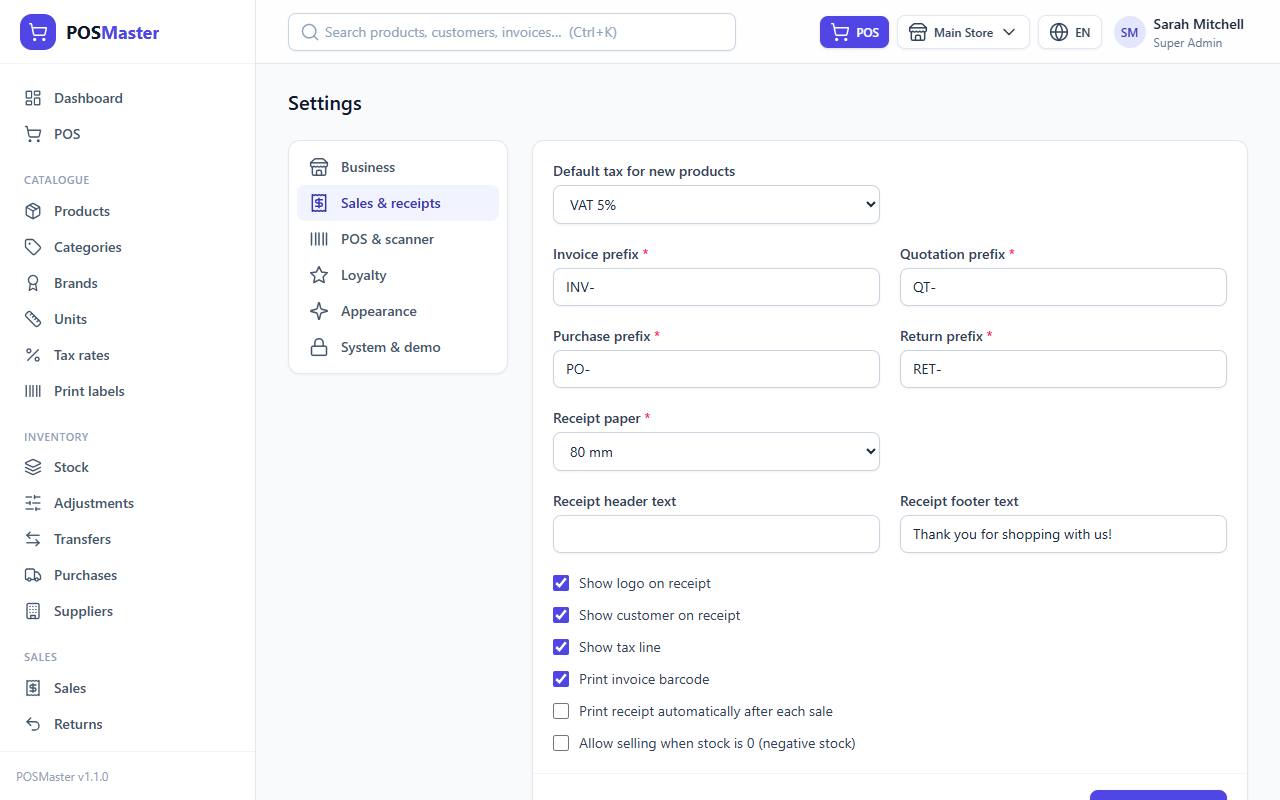
Document numbers
Every document gets a sequential number: the prefix plus a 6-digit counter, such as INV-000123. The counter never repeats, even with two cashiers selling at the same time. Changing a prefix only affects new documents; old numbers stay as they were and the counter continues.
| Field | What it does | Recommended / default |
|---|---|---|
| Default tax for new products | The tax rate that is pre-selected when you create a product. Rates are managed under Catalogue → Tax rates. | Your usual rate, or leave empty. Default: VAT 5% on a fresh install |
| Invoice prefix | Start of every sale number. Up to 10 characters. | Short and meaningful, such as INV- or S- (per branch: NYC-). Default: INV- |
| Quotation prefix | Start of quotation numbers. | Default: QT- |
| Purchase prefix | Start of purchase numbers. | Default: PO- |
| Return prefix | Start of sale return numbers. | Default: RET- |
Note: Stock adjustments, stock transfers, expenses and supplier returns are numbered automatically with
ADJ-,TRF-,EXP-andPRT-. These prefixes are not editable in the Settings screen.
Receipt
| Field | What it does | Recommended / default |
|---|---|---|
| Receipt paper | The paper size the receipt is laid out for (see below). | Match your printer. Default: 80 mm |
| Receipt header text | One line printed under the business name, for example a slogan or opening hours. Up to 255 characters. | Optional. Default: empty |
| Receipt footer text | One line at the bottom, for example a thank-you or return policy. Up to 255 characters. | Default: Thank you for shopping with us! |
| Show logo on receipt | Prints your logo at the top (needs a logo on the Business tab). | On if your printer prints graphics clearly. Default: On |
| Show customer on receipt | Prints the customer name (or Walk-in customer). | Default: On |
| Show tax line | Prints the Tax total line. | On if you charge tax. Default: On |
| Print invoice barcode | Prints a barcode of the invoice number at the bottom, so you can scan a receipt to find the sale quickly. | Default: On |
| Print receipt automatically after each sale | Opens the print dialog as soon as a sale is completed. | On for a busy counter with a receipt printer. Default: Off |
| Allow selling when stock is 0 (negative stock) | When off, the POS refuses to sell more than you have. When on, stock may go below zero. | Keep off so stock stays accurate; turn on only if you sell before you enter purchases. Default: Off |
Receipt paper sizes
| Size | Printer | Notes |
|---|---|---|
| 58 mm | Small thermal roll printers | Compact layout with a smaller font. Keep item names short. |
| 80 mm | Standard thermal receipt printers | The most common size and the default. |
| A4 | Office inkjet or laser printers | A wider, full-page invoice-style layout. |
Receipts are printed through the browser's print dialog, so choose your receipt printer there and set margins to "None" or "Minimal". See the troubleshooting section of the help site if your receipt is cut off.
POS & scanner
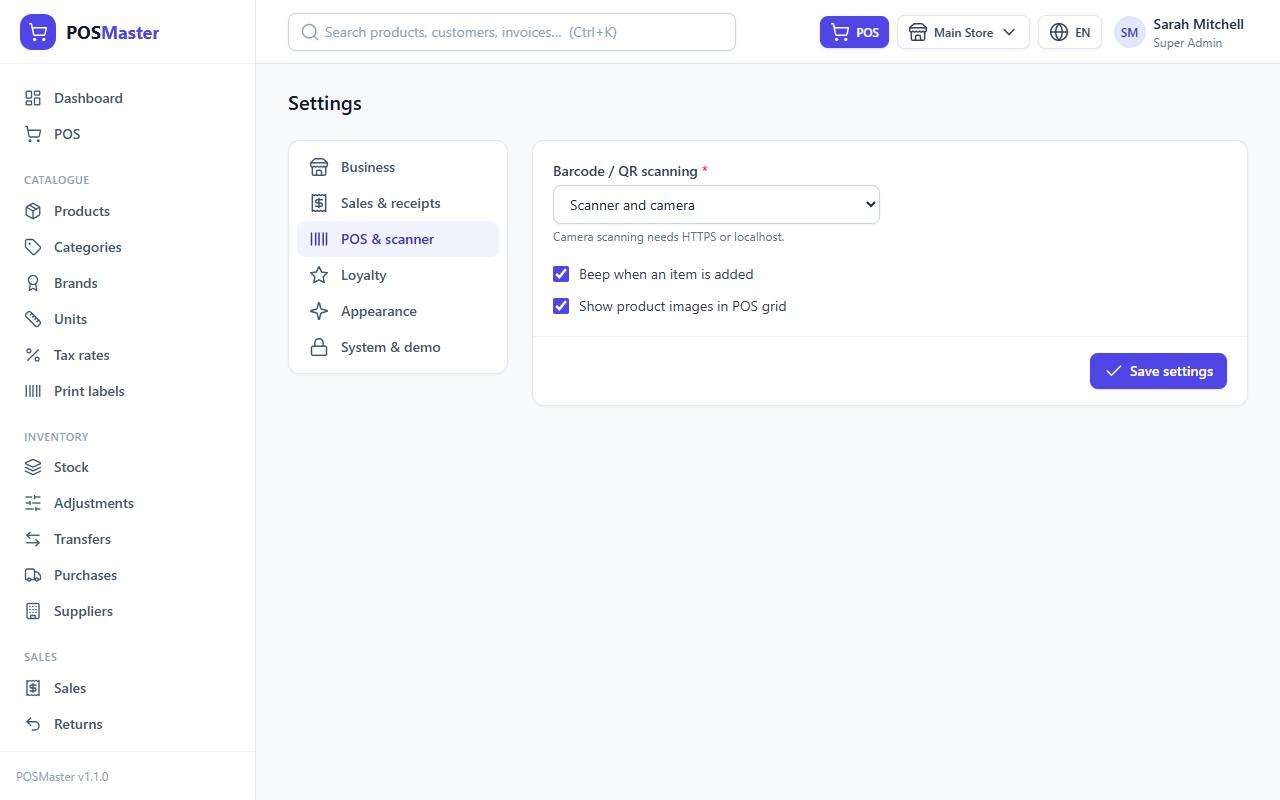
| Field | What it does | Recommended / default |
|---|---|---|
| Barcode / QR scanning | Chooses how products are scanned (see below). | Scanner and camera for flexibility. Default: Scanner and camera (both) |
| Beep when an item is added | Plays a short beep when an item is added to the cart and a low beep when a code is not found. | On at a busy counter. Default: On |
| Show product images in POS grid | Shows pictures on the product tiles. Turn off for a faster, text-only grid on slow devices. | Default: On |
Customer display
These fields set up the second screen that faces the customer. See Customer display.
| Field | What it does | Recommended / default |
|---|---|---|
| Welcome text | A line shown on the display while the till is idle. Up to 120 characters. | Default: Welcome! Thank you for shopping with us. |
| QR code link on the thank-you screen | A web address shown as a QR code after payment, for example your website or social page. Leave empty for no QR. | Default: empty |
| Promo pictures while idle (up to 5) | Pictures shown one after another while the till is idle (each up to 2 MB). Uploading replaces the current pictures; tick Remove these pictures to delete them. | Wide pictures with large text. Default: none (the logo and business name are shown) |
Kitchen / preparation tickets
| Field | What it does | Recommended / default |
|---|---|---|
| Print preparation tickets for categories marked “Print prep ticket” | Turns prep tickets on. Shows the Kitchen button in the POS and prints a ticket for sales that contain items from marked categories. | On for cafés and restaurants. Default: Off |
| Print the ticket automatically after each sale | Opens the print window for the prep ticket right after Complete sale. When off, the cashier clicks Print prep ticket. | Default: On |
Scanner modes
| Mode | What you get |
|---|---|
| USB / Bluetooth scanner only | The camera button is hidden. Scan with a hardware scanner. |
| Device camera only | A camera button appears in the POS search box, for phones and tablets. |
| Scanner and camera | Both. |
A USB or Bluetooth scanner works like a keyboard: it types the code and presses Enter. Click in the POS search box (or press F2) and scan. The scanner must be set to send Enter after the code (most are by default).
Warning: Camera scanning only works over HTTPS or on
localhost. Browsers block the camera on plain HTTP.
Loyalty
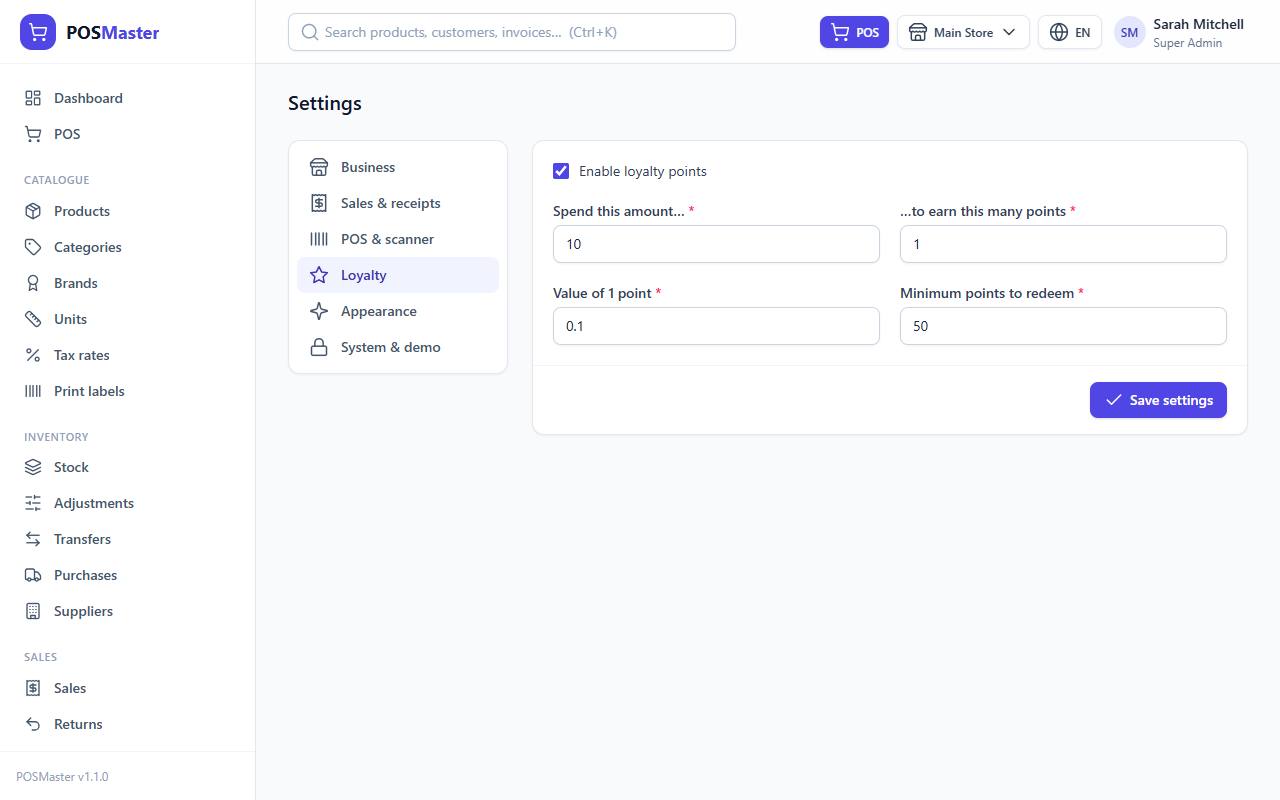
| Field | What it does | Recommended / default |
|---|---|---|
| Enable loyalty points | Turns points on or off. When off, nobody earns or spends points, but existing points are kept. | On if you want a rewards programme. Default: On |
| Spend this amount… | The amount of money that earns points. | Default: 10 |
| …to earn this many points | The number of points given for each block of money above. Whole number, at least 1. | Default: 1 |
| Value of 1 point | What one point is worth in money when spent. | Default: 0.1 |
| Minimum points to redeem | The smallest number of points a customer can spend in one go. | Default: 50 |
How the loyalty maths works
- Earning: only full blocks count. Points = (amount paid ÷ "Spend this amount", rounded down) × "points earned".
- Spending: money value = points spent × "Value of 1 point".
- Reward rate: (Value of 1 point × points earned) ÷ "Spend this amount". With the defaults, that is (0.10 × 1) ÷ 10 = 1%.
Example with the defaults:
- A customer buys goods for 87.50. 87.50 ÷ 10 = 8.75, rounded down to 8 blocks, so they earn 8 points.
- Later they have 120 points. They choose to pay with 100 points. That is 100 × 0.10 = 10.00 off the bill (the minimum of 50 is met).
- If the bill was 40.00, they pay the remaining 30.00 another way. The new points are earned on the 30.00 only, so they receive 3 points.
Tip: Keep the reward rate between 1% and 5%. Higher rates cost you real money. The Coupons, gift cards & points report shows what points redeemed have cost you.
Points are removed again when a sale is returned or voided. See Coupons, gift cards, promotions and loyalty.
Appearance
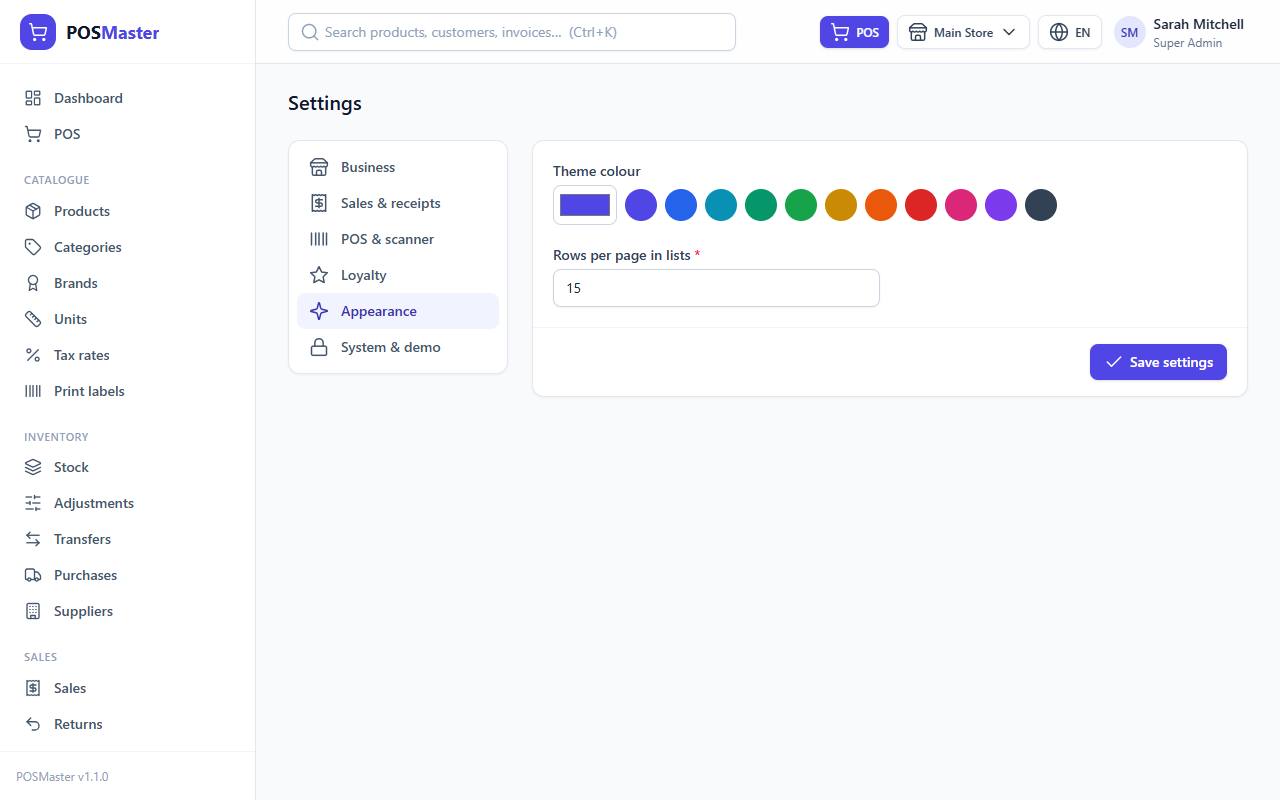
| Field | What it does | Recommended / default |
|---|---|---|
| Theme colour | The main colour of buttons, links, active menu items and highlights. Pick a swatch or open the colour picker. The page previews the colour before you save. | A colour from your logo. Pick one with good contrast against white text. Default: #4f46e5 (indigo) |
| Rows per page in lists | How many rows each list (products, sales, customers, …) shows before paging. A number from 5 to 100. | 15 to 25 on desktop, fewer on tablets. Default: 15 |
Settings for sending invoices, receipts, quotations, purchases and returns by email, with the PDF attached. See PDF and email.
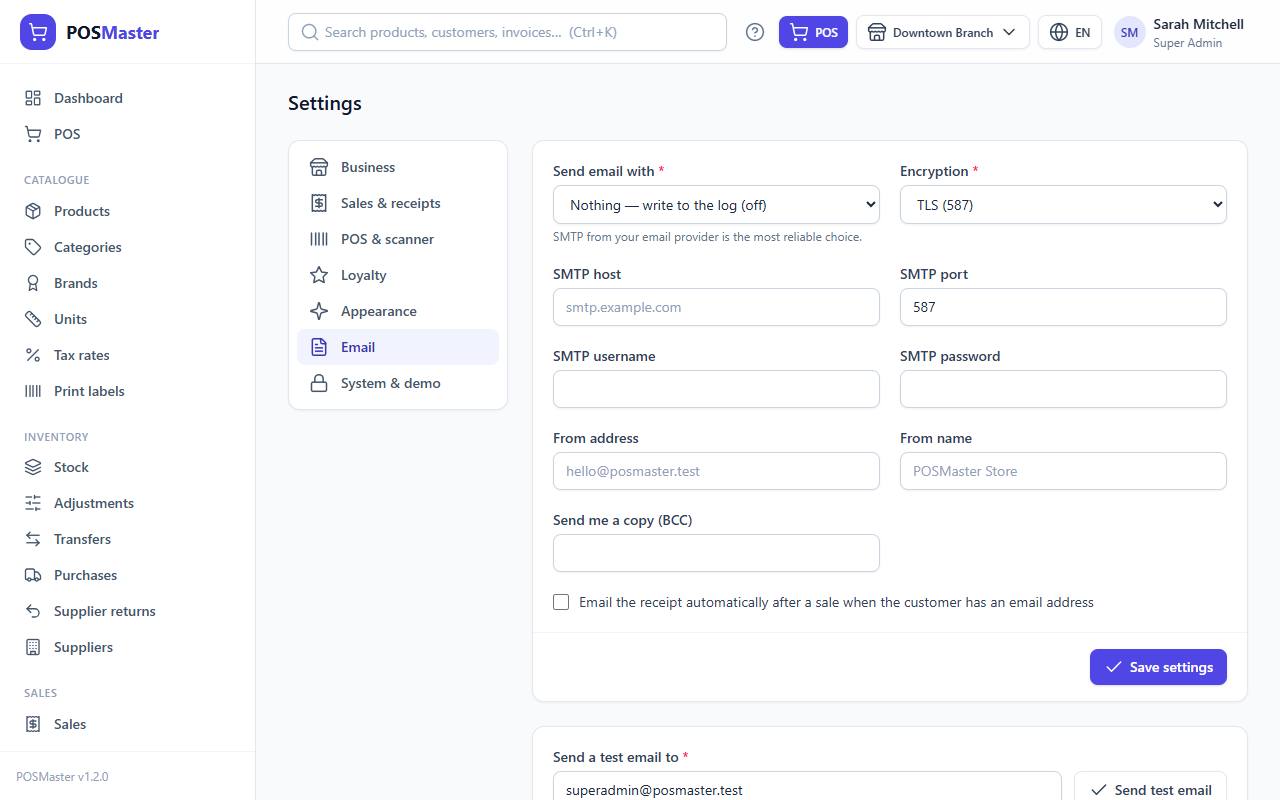
| Field | What it does | Recommended / default |
|---|---|---|
| Send email with | Nothing — write to the log (off), SMTP or Server sendmail. With the log, nothing is sent; emails are written to storage/logs instead. |
SMTP from your email provider is the most reliable choice. Default: log (off) |
| Encryption | TLS (587), SSL (465) or None. Must match the port. | As your provider says, usually TLS. Default: TLS |
| SMTP host | The mail server name, for example smtp.example.com. Required for SMTP. |
From your provider. Default: empty |
| SMTP port | Usually 587 for TLS or 465 for SSL. | Default: 587 |
| SMTP username | The login of the mailbox, often the full email address. | Default: empty |
| SMTP password | The mailbox password (or app password). It is stored encrypted. Once saved, the field stays empty and shows "Saved. Leave empty to keep it."; type a new one only to change it. | Default: empty |
| From address | The sender address customers see. Empty uses the business email from the Business tab. | An address on your own domain. |
| From name | The sender name. Empty uses the business name. | Your shop name. |
| Send me a copy (BCC) | Gets a hidden copy of every document and receipt you email. | Optional. Default: empty |
| Email the receipt automatically after a sale when the customer has an email address | Emails the receipt PDF after each POS sale to a customer with an email address. | Default: Off |
After saving, use Send a test email to and Send test email below the form to check that sending works.
Note: If the server's
APP_KEYchanges, the saved SMTP password can no longer be read. Type it again and save.
Note: In demo mode every email is written to the log instead of being sent, whatever is chosen here.
System & demo
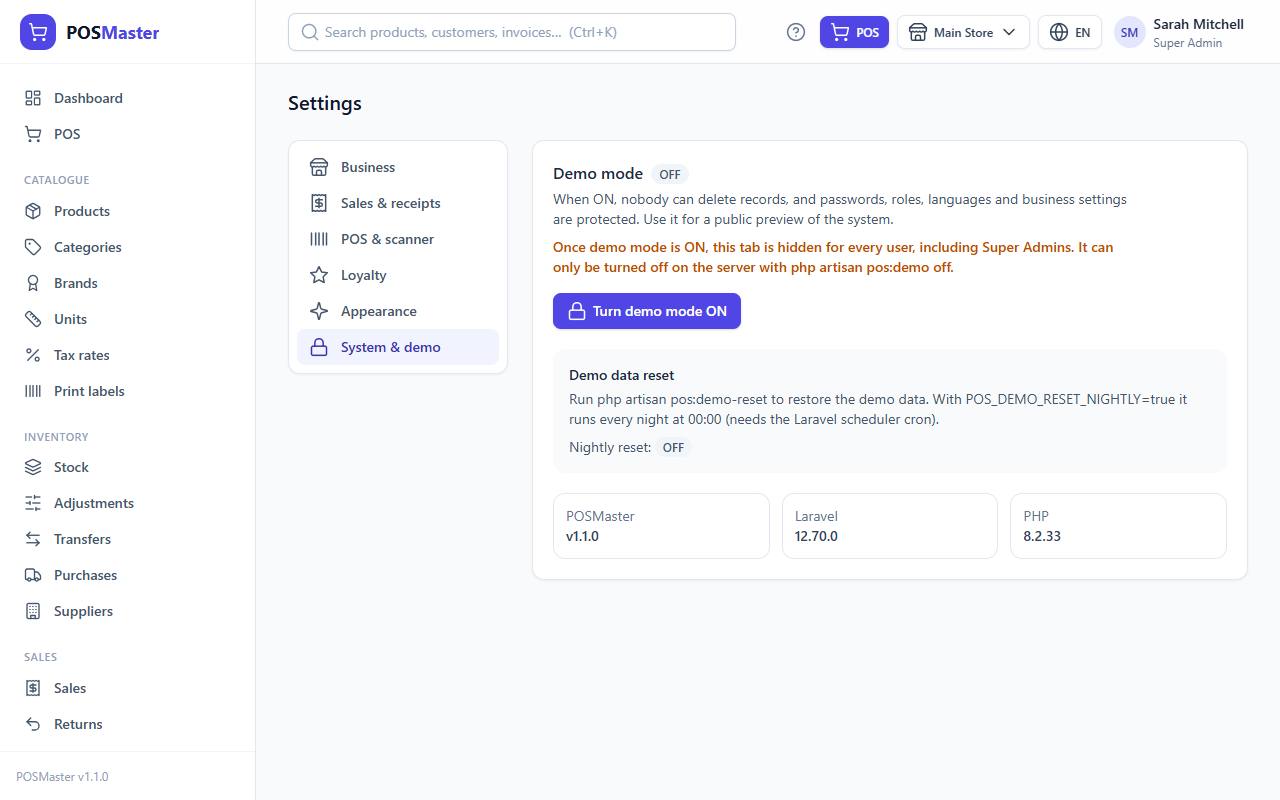
This tab has no Save button, and it is only visible while demo mode is OFF. It shows:
| Item | What it does | Recommended / default |
|---|---|---|
| Turn demo mode ON | Turns demo mode on (after a confirmation). When on, nobody can delete records, and passwords, users, roles, languages and business settings are protected. Only users with settings.demo (the Super Admin) see the button. Once demo mode is on, this whole tab is hidden for everyone, and only php artisan pos:demo off on the server turns it off. |
Off on a real shop. Default: Off |
| Demo data reset | Explains php artisan pos:demo-reset and shows whether the Nightly reset (POS_DEMO_RESET_NIGHTLY) is ON or OFF. |
Off, unless this is a demo server. |
| Version tiles | The POSMaster, Laravel and PHP versions. Quote them when you ask for support. | |
| Backups | Create a backup now (with or without pictures, optional password), automatic nightly backups (hour and how many to keep), the list of saved backups with Download, Restore and Delete, and Restore from a file. Super Admin only by default. See Backup and restore. | Nightly at 02:00, keep 7 |
Read the full guide in Demo mode.