Supplier returns
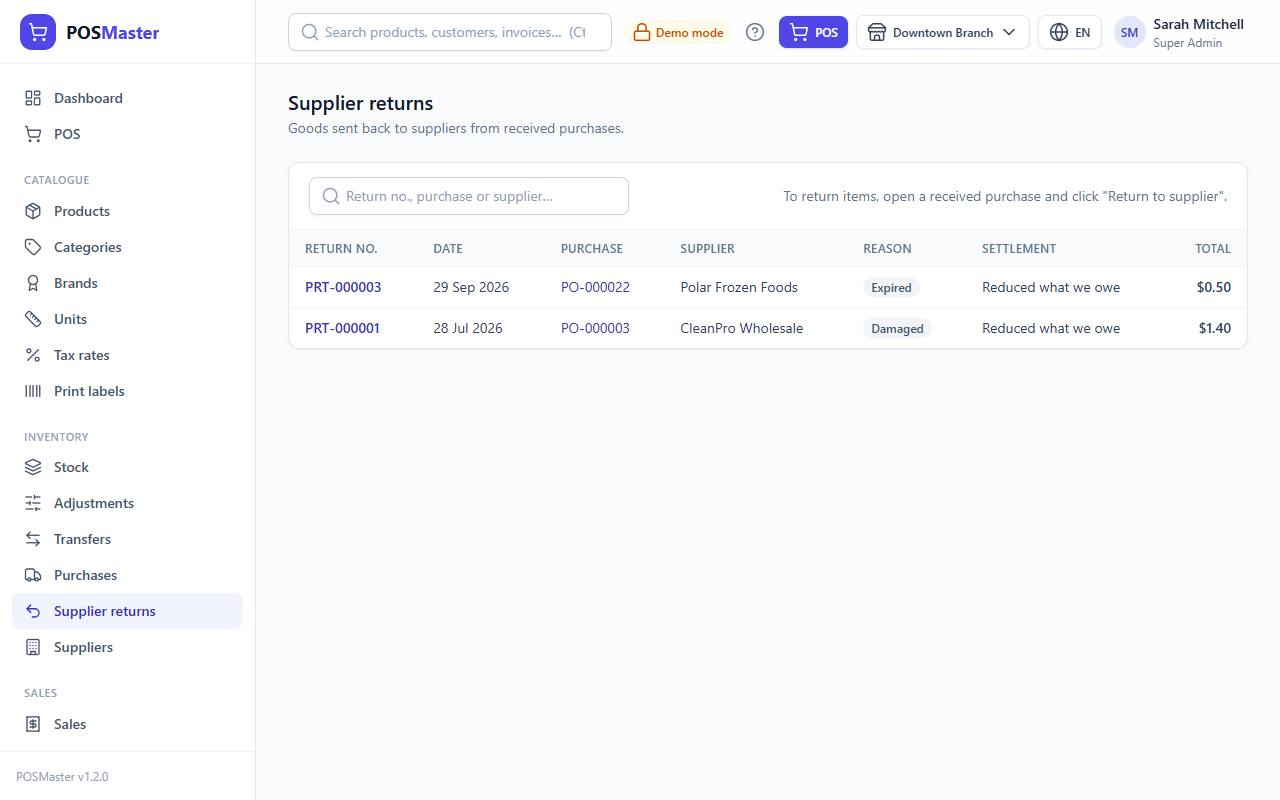
A supplier return sends goods from a received purchase back to the supplier, for example because they arrived damaged, expired or were the wrong item. The stock goes down and the money is settled with the supplier in one step. Open the list from Inventory → Supplier returns.
Note: A supplier return is for goods you bought. To take goods back from a customer, see Return items.
Return items to a supplier
You need the purchases.return permission.
- Go to Inventory → Purchases and open the purchase the goods came from.
- Click Return to supplier. The button only appears on a received purchase that still has items left to return.
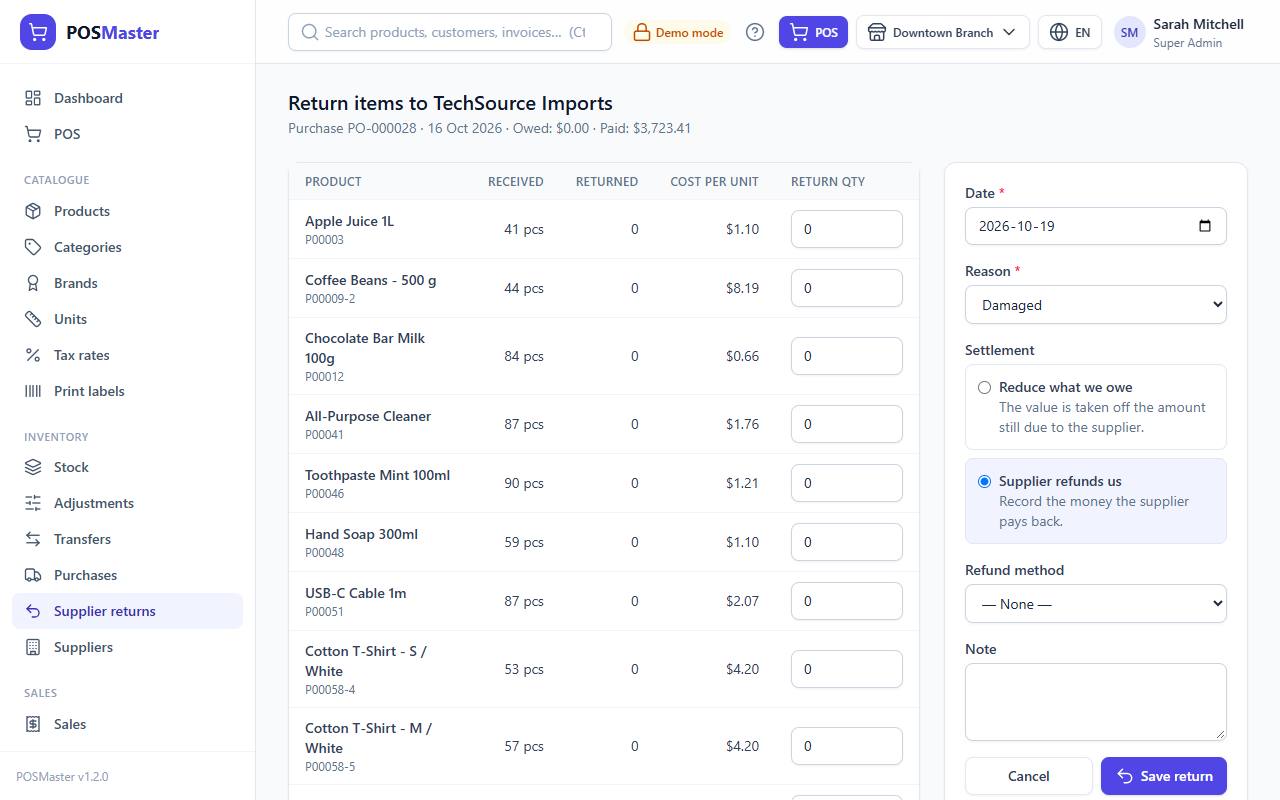
- The page shows every line of the purchase with the quantity Received, the quantity already Returned and the Cost per unit. The sub-title shows what you still owe (Owed) and what you have Paid on this purchase.
- In Return qty, type how many of each item go back. Leave 0 for items you keep. The box cannot go above what is left to return.
- Check the Date, choose a Reason and pick the Settlement (see below).
- If the supplier pays you back, choose the Refund method: Cash, Bank, Card or Mobile.
- Add a Note if you wish (for example the supplier's credit note number).
- Click Save return.
You land on the return page with the message "Items returned to the supplier. Stock has been updated."
Reasons
| Reason | Use it when |
|---|---|
| Damaged | Goods arrived broken or spoiled. |
| Expired | The goods are past their date. |
| Wrong item | The supplier sent something you did not order. |
| Excess | You received more than you ordered. |
| Quality | The goods do not meet the expected quality. |
| Other | Anything else. Explain it in the note. |
The reason is shown in the list, on the return page, on its PDF and in the stock movement ledger.
Choose the settlement
The settlement says how the money for the returned goods is handled.
| Settlement | What happens | Use it when |
|---|---|---|
| Reduce what we owe | The value is taken off the amount still due to the supplier on this purchase. | You have not paid the supplier in full yet. |
| Supplier refunds us | The money the supplier pays back is recorded as a negative payment on the purchase, with the refund method you chose. | You already paid and the supplier gives you money back. |
The form pre-selects Reduce what we owe when something is still owed, and Supplier refunds us when the purchase is fully paid.
Note: The return cannot be worth more than the money involved. With Reduce what we owe, the return value cannot be more than what is still owed on the purchase. With Supplier refunds us, it cannot be more than what you have paid. If it is, the form tells you the amount and suggests the other choice. For a large return on a part-paid purchase, make two returns: one of each kind.
What a supplier return changes
- Stock goes down in the branch of the purchase, in the base unit (returning 2 boxes of 12 takes 24 pieces out). The movement appears in the stock ledger with the type Purchase return. If the branch no longer has enough stock, the return is refused with "Not enough stock for ...", unless negative stock is allowed in Settings → Sales & receipts.
- The value of each line is its share of what you paid for that line, including the tax on it. Discounts and shipping on the whole purchase are not spread over the lines.
- The purchase shows a Returned to supplier line under its total, and a Supplier returns box lists each return. The Due and the payment status (Paid, Partial, Due) are updated.
- A refund appears in the purchase's Payments box as a negative amount.
- Cost prices of the products do not change.
- Reports: the Purchases and Suppliers reports show the returned amount in a Returned column.
You can return more items from the same purchase later, until everything received has gone back.
Find a supplier return
Inventory → Supplier returns lists the returns of the branch you are working in, newest first. Each row shows the Return no. (for example PRT-000004), Date, Purchase, Supplier, Reason, Settlement and Total. Search by return number, purchase reference or supplier name. Click a return number to open it, or a purchase reference to open the purchase.
You need purchases.view to see the list and the return pages.
Print, PDF and email a supplier return
Open a return to see the supplier, the reason, the settlement and each returned line with Qty, Unit cost, Tax and Total.
- Print prints the return from the browser.
- PDF opens an A4 PDF of the return that you can save or send.
- Email sends the PDF to the supplier. The supplier's email address is filled in for you.
See PDF and email for details. The button with the purchase reference takes you back to the purchase.
Note: Supplier returns cannot be edited or deleted, so check the quantities before you click Save return. If a stock figure ends up wrong, correct it with a stock adjustment.