Install on your computer
This page shows how to run POSMaster on your own Windows PC or Mac. It is the best way to try the system, learn it, or test your product list before you go live.
Tip: No terminal? Use the web installer: upload the files, open the site in your browser and follow the steps.
You need one of these free tools. They give you PHP, MySQL or MariaDB and a web server in one package:
- XAMPP (Windows, Mac, Linux)
- WAMP (Windows)
- Laragon (Windows)
- MAMP (Mac, Windows)
Before you start, read Requirements and make sure your tool has PHP 8.2 or newer.
Before you begin: with or without vendor
The download package has the app in the laravel-project folder. Open it and look for a folder called vendor.
vendor/is there. This is the normal case for the download package. You do not need Composer. Skip thecomposer installstep below.vendor/is missing. This happens if you downloaded only the source code. Install Composer 2 and runcomposer installonce inside the app folder.
The ready-built public/build folder is included too, so you never need Node.js unless you change the design.
Install steps
1. Copy the app into your web folder
Copy the laravel-project folder into your web folder and rename it posmaster. The web folder depends on your tool:
| Tool | Web folder |
|---|---|
| XAMPP | C:\xampp\htdocs\ |
| WAMP | C:\wamp64\www\ |
| Laragon | C:\laragon\www\ |
| MAMP | /Applications/MAMP/htdocs/ |
You end up with, for example, C:\xampp\htdocs\posmaster.
2. Start the services
Open the control panel of your tool and start Apache (or Nginx) and MySQL (or MariaDB).
3. Create an empty database
- Open phpMyAdmin, usually at
http://localhost/phpmyadmin. - Click New.
- Type a name such as
posmaster. - Choose the collation
utf8mb4_unicode_ci. - Click Create.
Note: On a fresh XAMPP, WAMP or Laragon the MySQL user is
rootwith an empty password. On MAMP the password is usuallyroot.
4. Create the .env file
The .env file holds your settings. Copy the example file:
# Windows (Command Prompt)
copy .env.example .env

# Windows PowerShell, Mac and Linux
cp .env.example .env
Open .env in a text editor and set at least these lines:
APP_URL=http://localhost:8000
DB_DATABASE=posmaster
DB_USERNAME=root
DB_PASSWORD=
If you will open the app through Apache instead of php artisan serve, set APP_URL to the address you will really use (see step 7).
5. Open a terminal in the app folder
- Windows: open the folder in File Explorer, click the address bar, type
cmdand press Enter. Laragon and XAMPP also have a Shell or Terminal button. - Mac: open Terminal and use
cd /Applications/MAMP/htdocs/posmaster.
Tip: If the
phpcommand is not found, your tool keeps PHP in its own folder. For XAMPP on Windows run it by its full path, for exampleC:\xampp\php\php.exe artisan pos:install --demo. Or add that folder to your PATH.
If vendor/ is missing, run this first:
composer install
6. Run the installer
Pick one of these two commands.
With demo data (recommended for a first look):
php artisan pos:install --demo
This builds the database, loads a demo shop with products, customers and 90 days of sales, and turns demo mode on. Sign in with superadmin@posmaster.test and the password password.
A clean shop for real use:
php artisan pos:install
The installer asks for your Super Admin name, email and password (at least 8 characters). Your shop starts empty, with the roles, units, tax rates and a branch called "Main Store" already prepared. Demo mode is off.
You can also pass the answers on the command line:
php artisan pos:install --name="Your Name" --email=you@example.com --password=YourStrongPassword
Warning:
pos:install --demowipes the whole database before it loads the demo shop. Use it only on an empty database or one you do not need.
Either command also creates the APP_KEY in your .env and the storage link for you. The storage link lets the browser show product pictures and logos. If product images do not show later, run it by hand:
php artisan storage:link
7. Open the app
You have two ways to open POSMaster. Use whichever you prefer.
Option A: the built-in server. Easy and needs no web server settings.
php artisan serve
Open http://localhost:8000. Keep the terminal window open while you work. Press Ctrl+C to stop it.
Option B: Apache. Open the public folder through your web server:
| Tool | Address |
|---|---|
| XAMPP, WAMP, MAMP | http://localhost/posmaster/public |
| Laragon | http://posmaster.test (Laragon creates this name for the folder automatically) |
If you use option B, set APP_URL in .env to the same address, for example APP_URL=http://localhost/posmaster/public.
Sign in
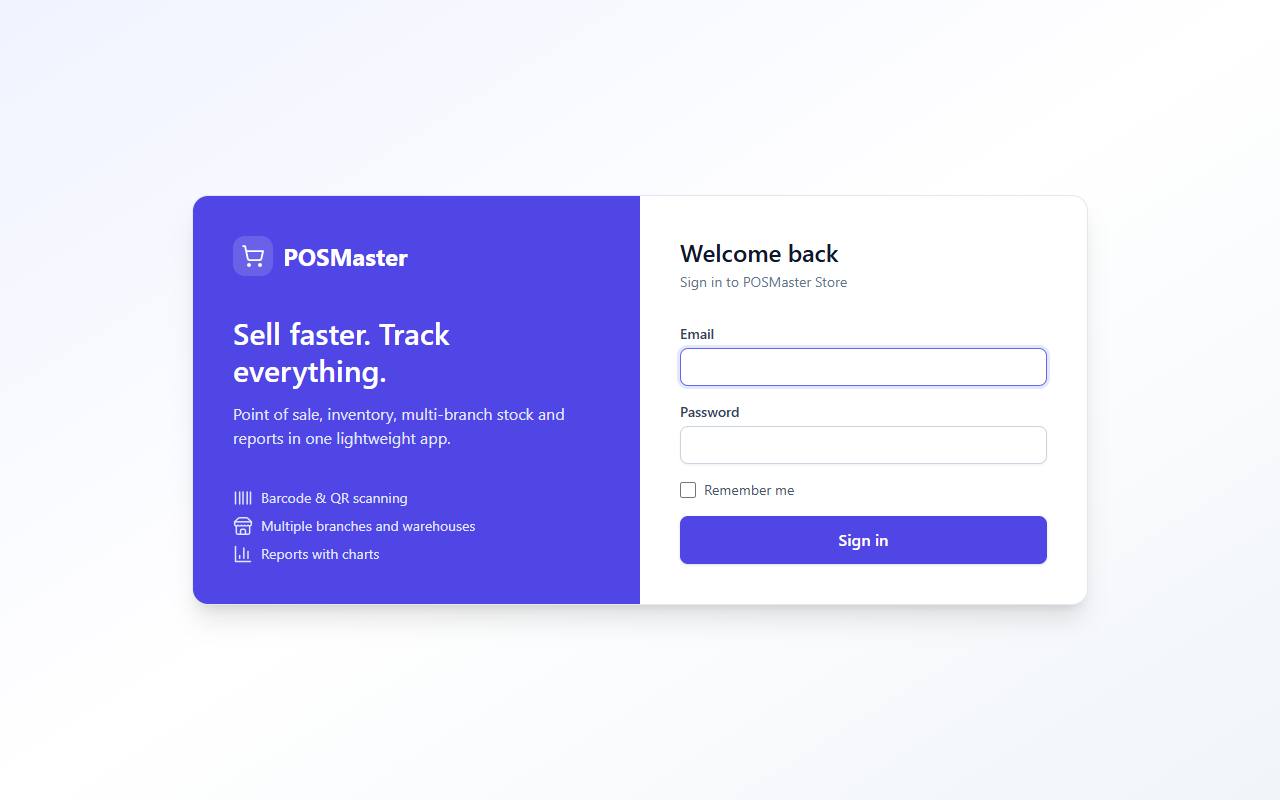
Open the address. You see the sign-in page.
- Enter your email and password.
- Click Sign in.
With demo data, the login page shows the demo accounts. Click one to fill in the form.
After you change .env
POSMaster may remember the old settings. If a change does not seem to work, clear the saved configuration:
php artisan optimize:clear
Next steps
- If you installed a clean shop, continue with First steps after installing.
- If you installed the demo, open Point of sale (POS) and make a test sale.
- If something goes wrong, see Troubleshooting.