Activity log and your profile
Activity log
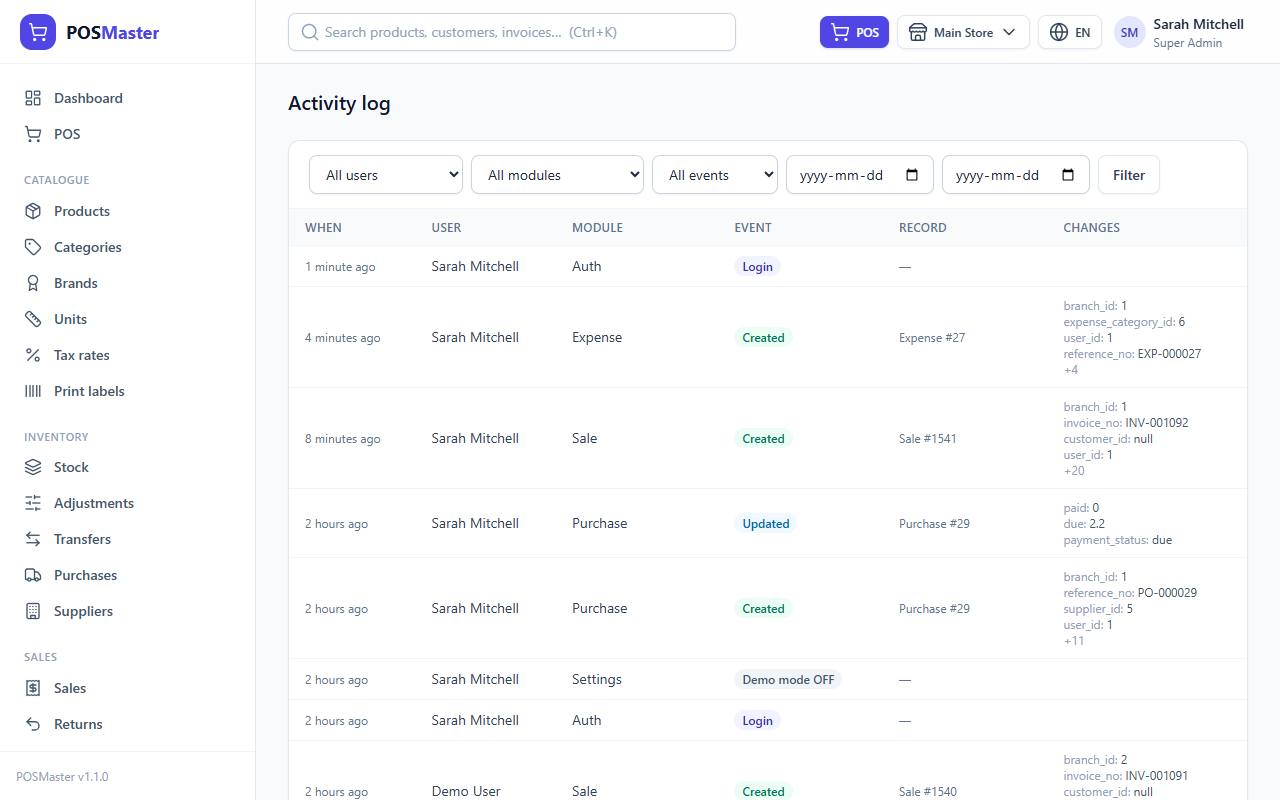
The activity log is a read-only diary of what happened in the system: who created, changed or deleted something, and when. Use it to answer questions such as "Who changed this price?" or "Who deleted that customer?".
Open Administration → Activity log (permission activity.view). By default only Super Admin and Admin can see it. Nobody can edit or erase log lines from the screen.
What is recorded
The log records, for each event: When, User, Module, Event, Record and Changes.
- Created, Updated and Deleted events for the main records: products, categories, brands, units, tax rates, suppliers, customers, users, branches, sales, sale returns, quotations, purchases, stock adjustments, stock transfers, expenses, expense categories, coupons, gift cards and promotions.
- Login events, each time someone signs in.
- When Demo mode is switched on or off, a line is added in the Settings module.
- For updates, the Changes column shows what changed: the old value crossed out, an arrow, then the new value. Up to four fields are shown, and "+2" means two more fields changed. Passwords are never written to the log.
- Changes made without a signed-in user (for example by a command run on the server) show the user as System.
Note: The log tells you that a record changed and which fields. It is not a copy of every screen you opened. Stock quantities are tracked in their own place: Inventory → Stock → Movements.
Filter the log
Use the filters above the table, then click Filter:
| Filter | What it does |
|---|---|
| All users | Only the actions of one person. |
| All modules | Only one kind of record, for example Sale, Product or Auth. |
| All events | Created, Updated, Deleted or Login. |
| From / To | A date range. |
The log shows 30 lines per page, newest first. Hover the "When" column to see the exact date and time.
Tip: To check on a cashier, filter by their name and the event Created with today's date: you will see every sale and customer they made.
My profile
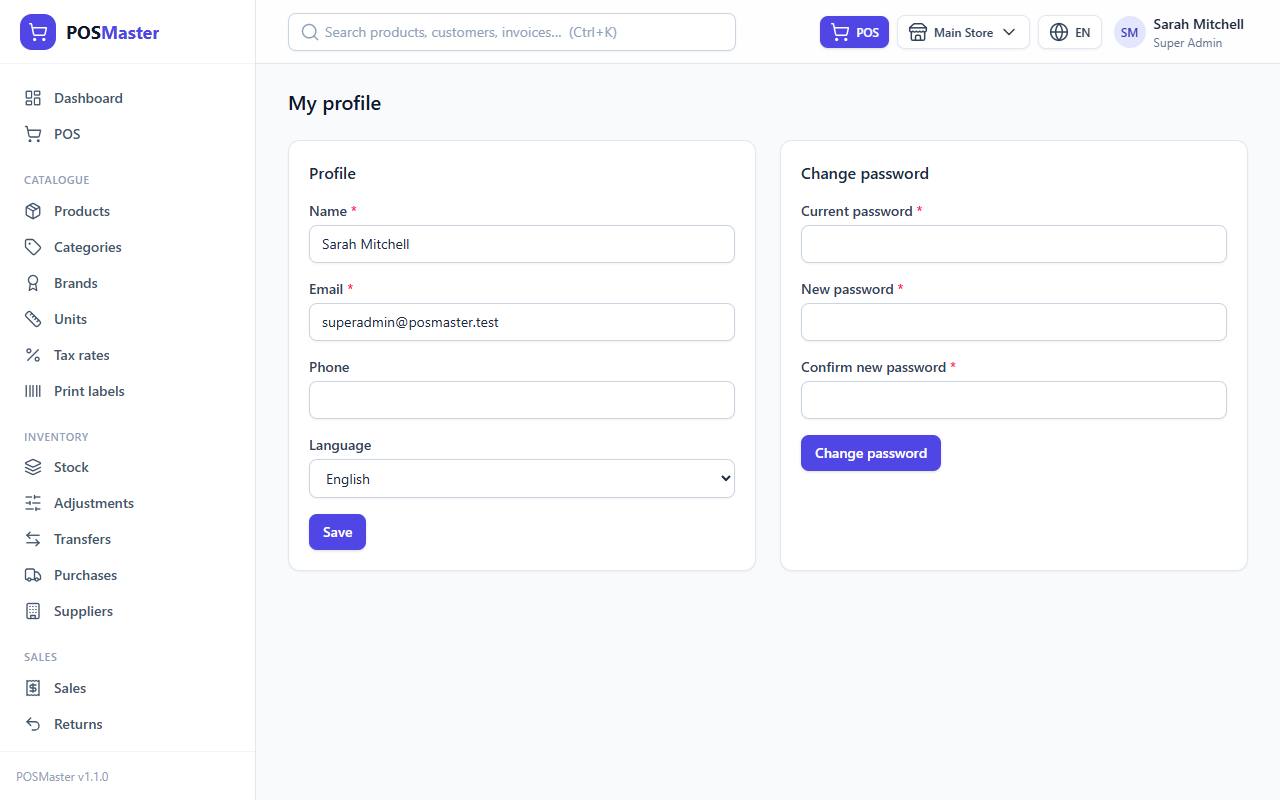
Every user can change their own details. Click your name (or initials) at the top right of any page, then My profile.
Update your details
- In the Profile card, change your Name, Email, Phone or Language.
- Click Save.
Your email is also your login, so it must be unique. The Language you choose is used every time you sign in. You can also switch language from the top bar. See Languages.
Change your password
- In the Change password card, type your Current password.
- Type the New password (at least 8 characters) and type it again in Confirm new password.
- Click Change password.
A strong password is long and not used on other sites. A good habit is a few random words, such as "blue-lamp-river-42".
Warning: If you forget your password, ask an administrator. They can set a new one in Administration → Users.
The red "change your password" banner
If you installed POSMaster by importing the SQL file, the installation contains one administrator account:
- Email:
admin@example.com - Temporary password:
ChangeMe-123
Until that account's password is changed, a red banner is shown at the top of every page: "You are using the default password from the installer. Change it now to keep your shop safe." Click Change password in the banner, which takes you to My profile, and set a new password. The banner disappears as soon as the password is changed.
Warning: Anyone who has read this guide knows the temporary password. Change it on your very first login, and do not leave it as it is, even for a day.
In demo mode
While demo mode is on, the Change password form is disabled for everyone, the Super Admin included. Changing the profile details is also disabled, except for a Super Admin on a server that is not locked. You can still change your language from the top bar.