Expenses
Expenses are the costs of running your shop that are not the stock you buy to resell: rent, electricity, salaries, transport, repairs and so on. Recording them lets the app show your real profit in the Profit & loss report.
Both screens are in the Finance group of the sidebar: Expenses and Expense categories.
Note: Buying stock is not an expense. Record stock you buy for resale as a Purchase. Its cost reaches your profit later, through the cost of goods sold, when you sell the items.
Create expense categories
Categories group your costs so the reports can show where the money goes (for example "Rent", "Utilities", "Salaries", "Marketing").
- Open Finance → Expense categories.
- Click Add Expense category.
- Type a Name and click Save.
The list shows each category and how many expenses use it. You can rename a category with the pencil icon. You need expense_categories.create to add and expense_categories.edit to rename. The trash icon (delete) is hidden in demo mode.
Create your categories before the first expense, because every expense needs one.
Add an expense
- Open Finance → Expenses.
- Click Add Expense.
- Fill in the form:
- Category (required): choose from your expense categories.
- Amount (required): the money spent, above zero.
- Date (required): today by default. Change it for an older bill.
- Reference: your own number, for example the bill number. Leave it empty and the app numbers it automatically (
EXP-000001,EXP-000002, …). - Note: a short description (up to 255 characters).
- Click Save.
You need the permission expenses.create.
Expenses belong to a branch
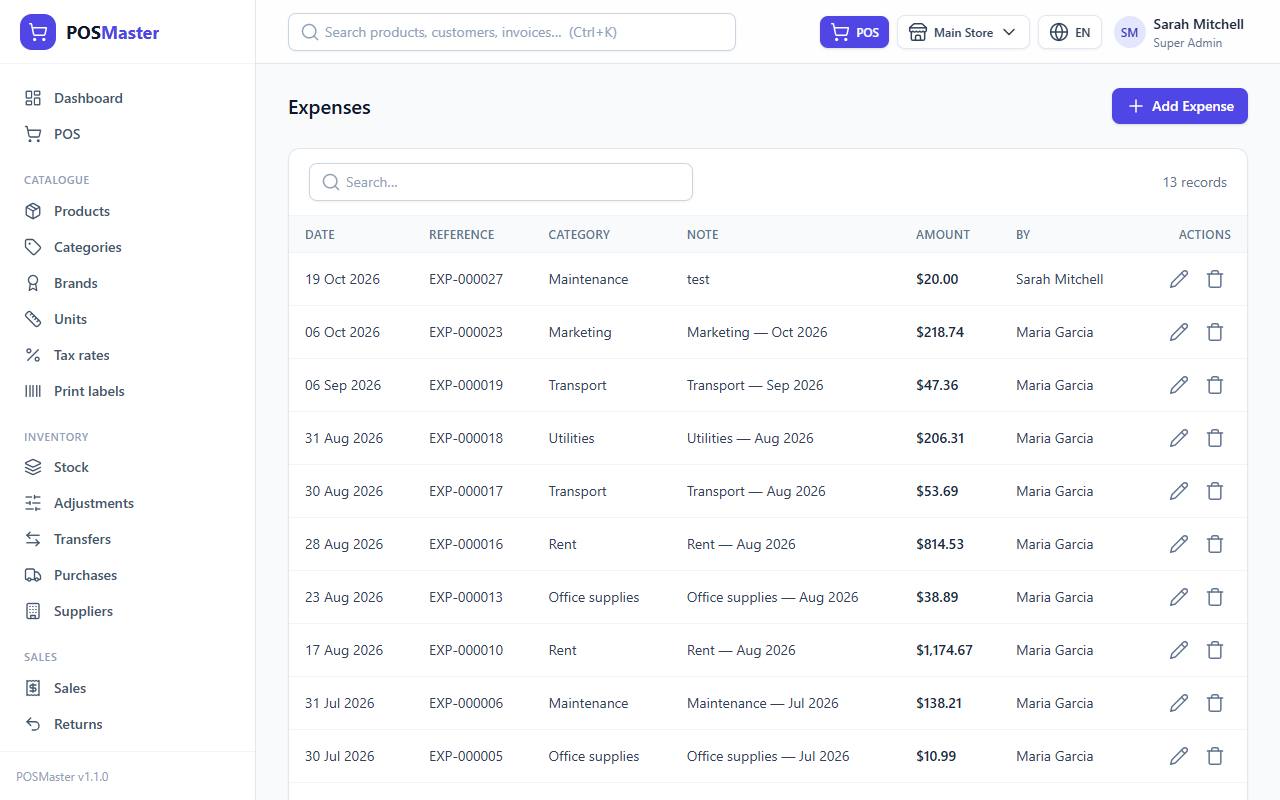
An expense is saved in the active branch, the one shown in the top bar. The Expenses list only shows the expenses of the active branch, so switch branch first if you want to record a cost for another shop. The person who entered it is saved and shown in the By column.
Search, edit and delete
- The search box finds expenses by reference or note.
- Click the pencil icon to correct the amount, date, category or note (
expenses.edit). - The trash icon deletes an expense after a confirmation (
expenses.delete). A deleted expense disappears from reports. In demo mode, delete is blocked.
How expenses show in Profit & loss
The Profit & loss report adds up every expense dated inside the report period, for the branches you select:
Gross profit  =  sales revenue (without tax)  -  returns  -  cost of goods sold
Net profit    =  gross profit  -  expenses
So an expense dated 15 March lowers the net profit of any report that includes 15 March. The Branch comparison report also shows expenses and net profit for each branch, and the Expenses report breaks the same costs down by category with each category's share of the total. See Reports.
Tip: Enter an expense on the day it is paid, with the real date. Then your monthly Profit & loss matches your bank and your cash drawer.