Customer display
The customer display is a second screen that faces the customer. While the cashier sells, it shows what is in the cart and the total. After payment it shows the change and a thank-you message. When the till is quiet it shows your logo or a slideshow of promo pictures.
What you need
- A second monitor connected to the same computer as the POS (most PCs and laptops have a second HDMI or DisplayPort output).
- The POS and the display open in the same browser on that computer.
Note: The display talks to the POS directly inside the browser, so it updates instantly and does not load your server. A display on another device (for example a tablet facing the customer) is not supported yet.
Open the customer display
- Open the POS.
- Click Display at the top of the POS (the button next to Full screen; on smaller screens only its icon is shown). A new window opens with the customer display.
- Drag that window to the customer monitor.
- Make it full screen: press F11, or double-click anywhere on the display.
- Go back to the POS window and sell as usual.
You can close and reopen the display at any time. When it opens, it asks the POS for the current cart, so it is up to date at once.
Tip: If the browser blocks the new window, allow pop-ups for your POSMaster address and click Display again.
What the customer sees
| Moment | The display shows |
|---|---|
| Idle (empty cart) | Your promo pictures one after another (a new one every 6 seconds). Without pictures it shows your logo and business name. Your welcome text is shown underneath. |
| Selling | The business name, the customer's name if one is selected, the items in the cart (the nine newest lines on a long cart) with quantity and line total, then Subtotal, Discounts (only when there are any), Tax and a large Total. |
| Paid | A green Thank you! screen with the Total and the Change, plus your QR code if you set one. After 10 seconds it goes back to idle, or straight to the next cart when you start scanning. |
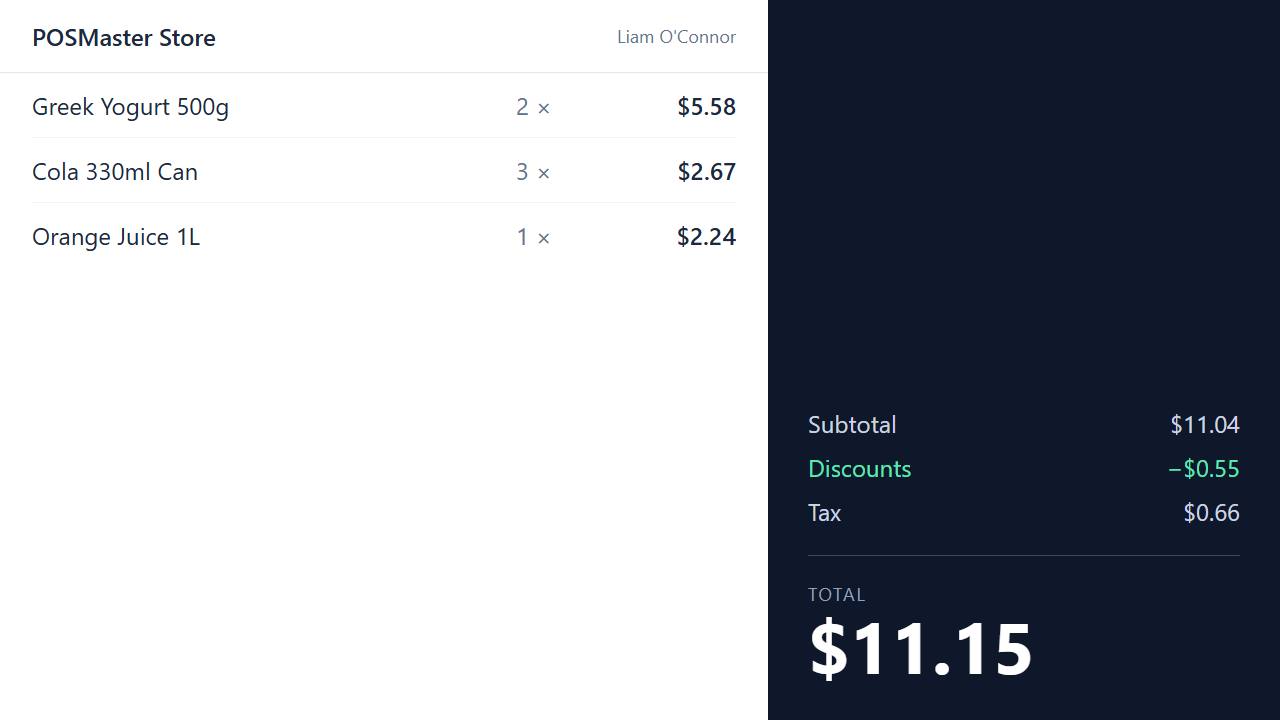
The display follows everything the cashier does: adding and removing items, changing quantities, discounts, promotions, coupons and choosing a customer.
Set up the welcome text, QR code and promo pictures
You need the settings.edit permission. Go to Settings → POS & scanner and find the Customer display section.
| Field | What it does |
|---|---|
| Welcome text | A short line on the idle screen. Default: Welcome! Thank you for shopping with us. |
| QR code link on the thank-you screen | A web address (for example https://…) turned into a QR code on the thank-you screen, for example your website, a review page or your social page. Leave empty for no QR. |
| Promo pictures while idle (up to 5) | Choose up to five pictures (each up to 2 MB). Uploading replaces the current pictures. Tick Remove these pictures to go back to the logo. |
Click Save settings, then reload the display window to see the changes.
Tip: Use wide pictures (for example 1920 × 1080) with large text. The customer reads them from a distance.
Troubleshooting the customer display
- The display stays on the idle screen while I sell. The display and the POS must be in the same browser on the same computer. A different browser, a private window or another PC will not receive the cart. Close the display and open it again with the Display button.
- The display asks me to sign in. It uses your POS session. Sign in in that browser, then open the display from the POS.
- The window opens on the wrong screen. Drag it to the customer monitor before you press F11. Most browsers remember where the window was.
- New promo pictures do not show. Reload the display window (press F5 on it).