Purchases and suppliers
A purchase records goods you buy from a supplier. When the goods arrive, a purchase adds them to your stock and updates your cost prices. Open the lists from Inventory → Purchases and Inventory → Suppliers.
Suppliers
Add your suppliers first, so you can pick them on a purchase.
- Go to Inventory → Suppliers and click Add Supplier.
- Fill in Name (required), and optionally Company, Phone, Email, Tax number and Address.
- Save.
The supplier list shows the total you bought from each supplier (Purchases) and what you still owe them (Due, in red). Use the search box to find a supplier by name, company, phone or e-mail.
Fill in the supplier's Email if you want to email purchase orders and supplier returns to them. See PDF and email.
Create a purchase
You need the purchases.create permission. The stock goes into the branch you are working in (the sub-title of the form says "Stock goes into ...").
- Go to Inventory → Purchases and click New purchase.
- Type the supplier name in Supplier and choose it from the list. This field is required.
- Add products with the search box at the top of the table. Type a name or SKU, or scan a barcode, then choose the product.
- For each line set:
- Unit - the unit you bought in (for example box). It only shows a choice if the product has several units.
- Qty
- Unit cost - what you paid for one of the chosen unit, before tax
- Tax - shown from the product's tax rate (you cannot change it on this form)
- Total - calculated for you (cost × quantity + tax)
- Set the Date and the Status (see below).
- Fill in the optional Discount (an amount taken off the whole purchase), Shipping (added to the total) and Note.
- If you paid the supplier already, type the amount in Paid now and choose the Method (Cash, Bank, Card or Mobile).
- Check the Subtotal, Tax and Total and click Save purchase.
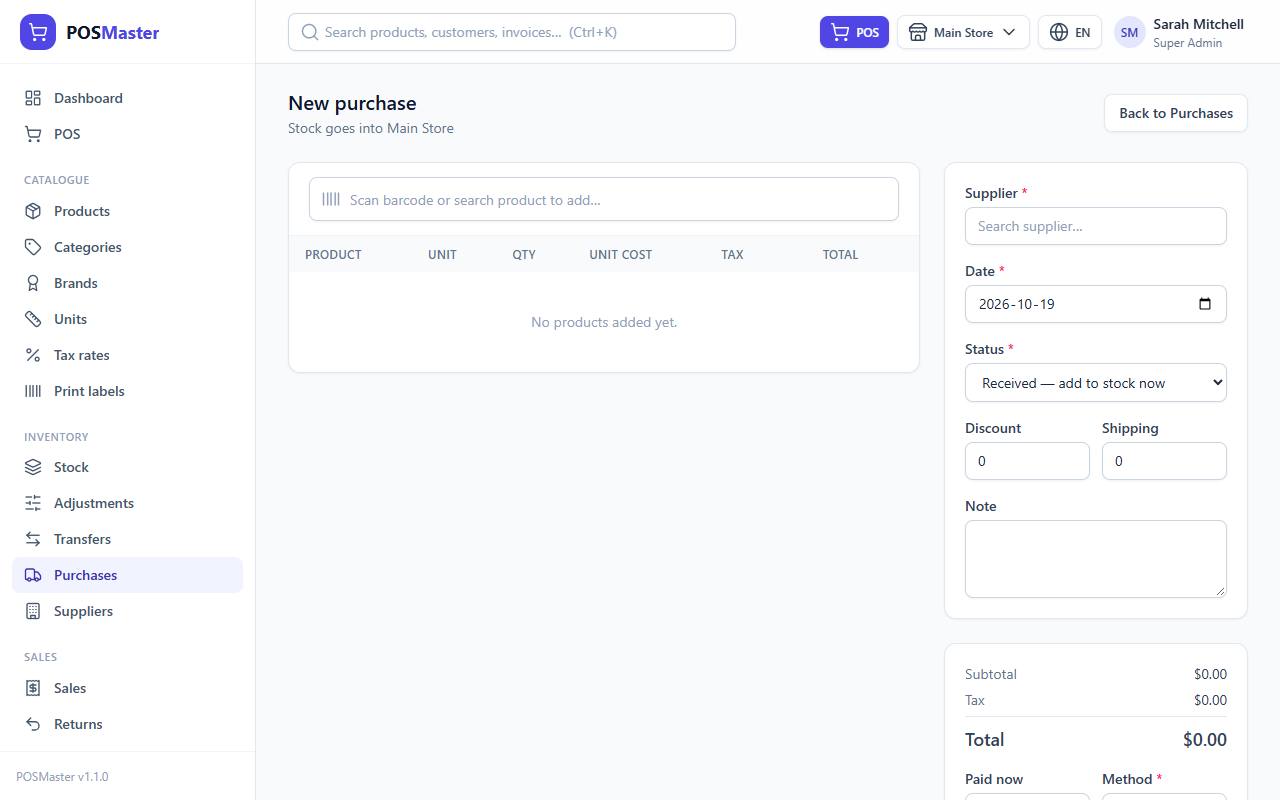
The totals on the form are a preview. The server recalculates everything when you save.
Purchase status: received, ordered or pending
| Status | Meaning | Stock |
|---|---|---|
| Received — add to stock now | The goods are in your hands. | Stock goes up now and cost prices are updated. |
| Ordered | You placed the order but the goods have not arrived. | No change. |
| Pending | A draft you are still preparing. | No change. |
Only a received purchase adds stock. Save purchases as Ordered or Pending while you wait, and receive them later (see below).
Units and unit cost
Cost is entered per the unit you choose. If a product is stocked in pieces but you buy by the box of 12, choose box, enter the quantity of boxes and the price of one box. Stock goes up in the base unit, so 5 boxes add 60 pieces. See Units and conversion.
Tax, discount and shipping
- Tax is added to each line using the product's tax rate: line total = cost × quantity + tax.
- Discount is one amount subtracted from the whole purchase. It cannot be more than the subtotal plus tax.
- Shipping is added to the total.
- Total = subtotal + tax − discount + shipping.
Receive an ordered or pending purchase
- Open the purchase and click Edit / receive (or the pencil icon in the list).
- Change what arrived (quantities, costs).
- Set Status to Received — add to stock now.
- Click Save purchase.
Stock is added once, at that moment.
Edit or delete a purchase
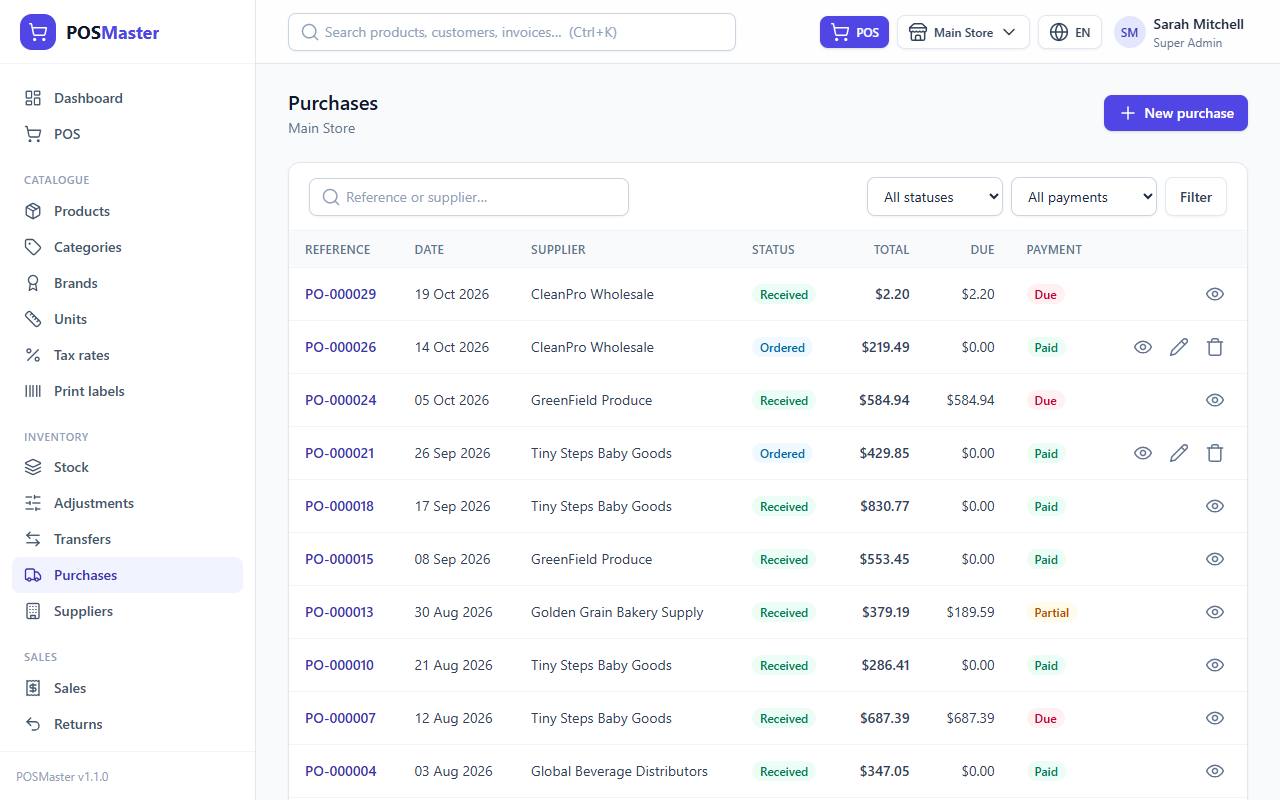
- Ordered and pending purchases can be edited and deleted (the delete button needs the purchases.delete permission and is hidden in demo mode).
- Received purchases cannot be edited or deleted. If a quantity was wrong, correct it with a stock adjustment. To send goods back to the supplier, use Return to supplier (see below).
Return goods to the supplier
On a received purchase, click Return to supplier to send damaged, expired or wrong items back. You need the purchases.return permission. Choose the quantities and a reason, and whether the supplier lowers what you owe (Reduce what we owe) or pays you back (Supplier refunds us). Stock goes down at once.
After a return, the purchase shows a Returned to supplier line under the Total, the Due is updated, and a Supplier returns box lists the returns. A refund appears in the Payments box as a negative amount. Read the full guide in Supplier returns.
Pay the supplier later
- Open the purchase from the list.
- In the Payments box choose the Method, check the Amount (it starts as the full balance) and add a Reference if you wish.
- Click Add payment.
The payment status of the purchase changes from Due to Partial and then Paid. You cannot pay more than what is due. The due amount is the total minus what you paid and minus any goods returned to the supplier. Use the Payment filter in the list (Paid, Partial, Due) to find purchases you still owe. You need the purchases.edit permission to add payments.
Cost price update
When a purchase is received, each product's cost price is set to the unit cost of that purchase (converted to the product's own unit). The new cost is used for profit figures on the dashboard and in reports and for the stock value. It is the latest cost, not an average.
Find and filter purchases
The list shows reference, date, supplier, status, total, due and payment status for the current branch. Search by reference number or supplier name, and filter by Status (Received, Ordered, Pending) and Payment (Paid, Partial, Due). Click a reference to see the full purchase and print it with Print. Use PDF to open it as an A4 purchase order, or Email to send that PDF to the supplier. See PDF and email.