Offline mode
When the connection to the server drops, the POS keeps selling. Sales are saved in the browser and sent to the server automatically when the connection comes back. A manager then checks any differences on the Offline sales review page.
Offline mode is meant to get you through an internet or network outage of minutes or hours. It is not a way to work offline every day.
Get ready before the connection drops
Offline mode needs a little preparation while you are online:
- Use the address of your shop that starts with
https://(orhttp://localhoston the shop computer itself). Browsers only allow offline pages on HTTPS. See Requirements. - Sign in as the cashier who will sell, switch to the right branch, and open the POS once. The POS quietly stores what it needs in the browser: products, variants, prices, units, taxes, categories, running promotions, customers (name and phone) and the receipt settings.
- Keep using the same browser on the same computer.
The stored data is refreshed every time the POS is opened online and after each sync, so it stays up to date by itself.
Note: The stored data belongs to one cashier and one branch. If another cashier signs in on that computer, or you switch branch, open the POS online again before the connection drops. Logging out clears the stored data.
Install POSMaster as an app (optional)
Chrome and Edge can install POSMaster like an app, with its own icon and window that opens straight on the POS. Open the POS, then click the install icon in the address bar, or choose Install app in the browser menu (the exact wording depends on the browser). This also needs HTTPS. The installed app works like the browser tab, including offline mode.
Sell while offline
When the connection drops, a yellow bar appears at the top of the POS: Offline: selling with cash or card only. Sales sync when the connection is back.
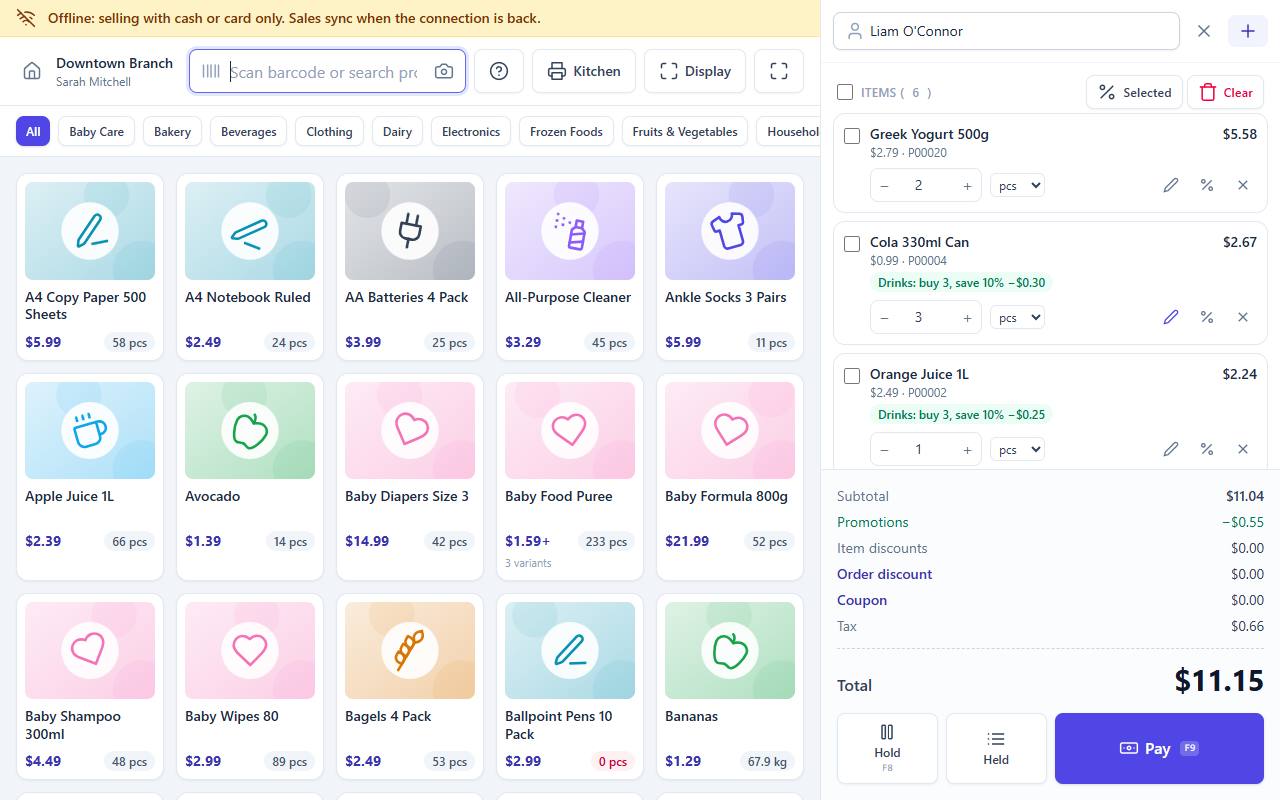
Sell as usual:
- Scan barcodes or search by name, SKU or barcode. Pick from the product grid and the category bar.
- Change quantities and units, give line, selected-lines and order discounts. Running promotions are applied.
- Select an existing customer by name or phone.
- Take payment with Cash or Card, or both. Offline sales must be paid in full, and only cash can give change.
- Click Complete sale. The success window shows a temporary number such as OFF-K7QD-12 and the message Saved offline. It syncs when the connection is back.
Totals are calculated in the browser with the same rules the server uses. The stock shown in the POS goes down as you sell.
Not available offline
These need the server. When you try them, the POS shows Not available offline:
| Feature | Why |
|---|---|
| Coupons | A coupon in the cart is removed when the POS goes offline. |
| Gift cards and loyalty points | Payment methods other than cash and card are hidden. |
| Selling on credit | The sale must be paid in full. |
| Holding and resuming sales | Held sales are kept on the server. |
| Adding a new customer | Choose an existing customer or sell to a walk-in customer. |
| Kitchen tickets | The Kitchen button and the prep ticket after the sale. |
| Email receipts | The email box is hidden on the success window. |
The offline receipt
Click Print (or turn on automatic printing) as usual. The receipt is printed with the temporary number OFF-… and the line Offline sale. The invoice number is given when the POS is back online. The real invoice number is given when the sale syncs. If the customer needs it, find the sale later in the sales list and reprint the receipt.
When the connection comes back
The POS notices that the connection is back (it checks every 30 seconds) and sends the waiting sales to the server automatically, oldest first. A message says Offline sales synced with the number of sales.
- While sales are waiting, the bar shows Waiting to sync with the number of sales.
- When you are online and sales are still waiting, a Sync now button appears in the bar. Click it to send them at once.
- If the POS says Sign in again to sync offline sales., your session has ended. Sign in again in the same browser as the same cashier and open the POS.
A sale is never imported twice, even if the sync is interrupted and started again.
What the server does with each sale
- It recalculates the sale with the current prices, promotions and taxes.
- It gives the sale its real invoice number and keeps the date and time of the sale as it was made at the counter.
- It takes the items out of stock. For these sales stock may go below zero, because the goods have already left the shop.
- It marks the sale Offline. In the sales list the invoice has a yellow Offline badge, and the invoice page shows Offline sale with the temporary number.
If anything does not match, the sale is still imported and the difference is listed on the review page. The message after syncing then adds Some need review on the Offline sales review page.
Review offline sales
Open Sales → Offline sales review. You need the sales.offline permission (Admin and Manager have it by default). The page lists the differences found for the branch you are working in.
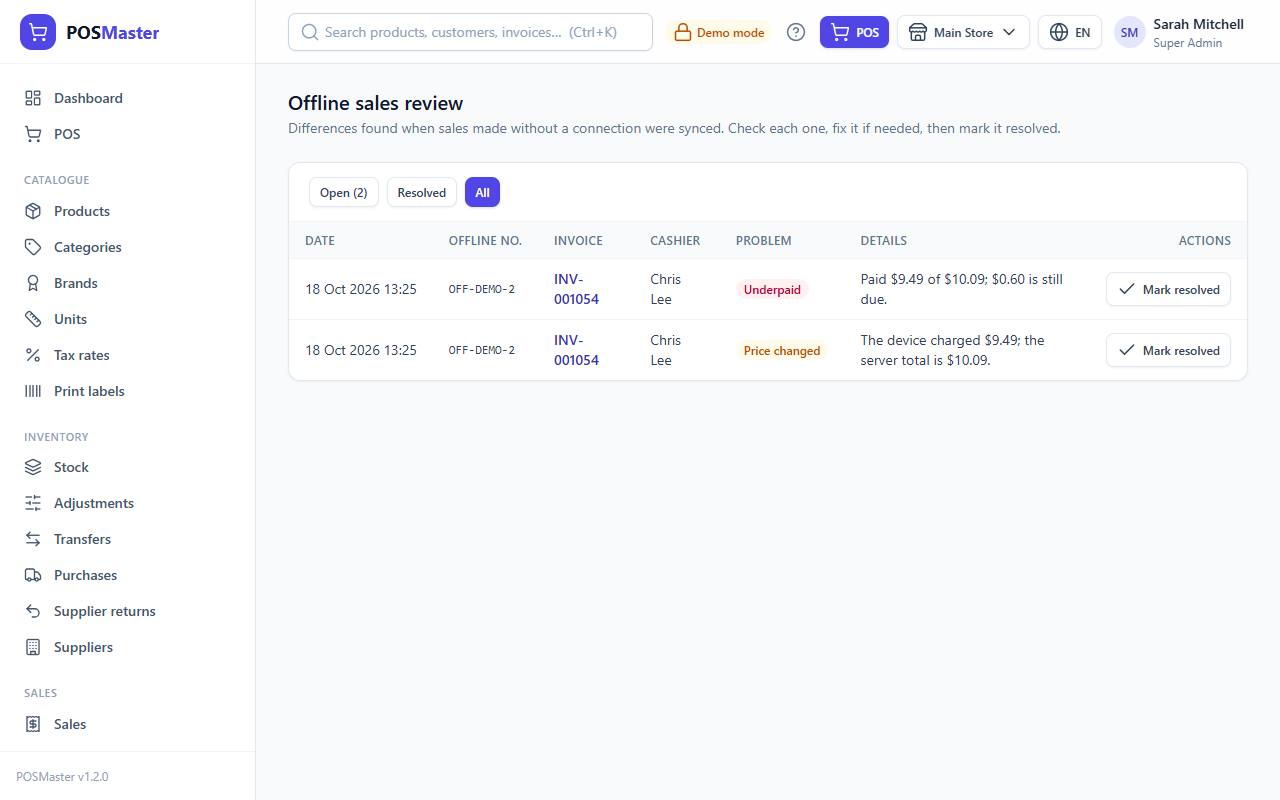
Use the buttons at the top to show Open problems (with their number), Resolved ones or All. Each row shows the Date, the Offline no., the Invoice it became (click to open it), the Cashier, the Problem and the Details.
| Problem | What it means | What to do |
|---|---|---|
| Price changed | The total charged at the counter is different from the total the server calculated (a price or promotion changed). The details show both amounts. | Decide whether to accept the difference. If the customer was undercharged, the invoice may show a due amount. |
| Product missing | A product was deleted or deactivated before the sale synced. It was left out of the invoice. | Correct the stock with an adjustment if needed. |
| Stock short | There was not enough stock for an item, so stock went below zero. Only reported when negative stock is not allowed in the settings. | Count the item and fix the stock with a purchase or an adjustment. |
| Underpaid | The server total is higher than what was paid, so the invoice has an amount due. | Collect the money, or leave it as due on the customer. See Add a payment. |
| Not imported | Nothing in the sale could be imported (for example every product was deleted). | Open Sale as sent by the device to see the items and the total, then enter the sale again by hand. |
When you have dealt with a problem, click Mark resolved. The row then shows who resolved it and when.
Important warnings
Warning: Unsynced sales live only in this browser on this computer. Do not clear the browser data, use a private window, or uninstall the browser while sales are waiting, or those sales are lost.
- Logging out: if sales are waiting, POSMaster warns you (Offline sales are waiting to sync) and asks whether to log out anyway. The sales stay in the browser and sync when the same cashier signs in again on this computer.
- Device clock: the sale time comes from the computer's clock. Keep the clock and time zone correct.
- Reloading the POS while offline works only when the site runs on HTTPS (or localhost), because the browser then keeps a copy of the POS page. On plain HTTP, keep the POS tab open: selling continues as long as you do not close or reload it.
- The customer display keeps working offline on the same computer. See Customer display.
Troubleshooting offline mode
- "Offline mode is not ready: open the POS once while online." The browser has no stored products for this cashier and branch. Wait for the connection, open the POS, then try again.
- The POS shows an "Offline" page after a reload. The site is not on HTTPS, or the POS was never opened online in this browser. See Offline mode is not ready.
- Sales stay "Waiting to sync". Check the connection, click Sync now, and make sure you are signed in as the cashier who made the sales.