PDF and email
Invoices, quotations, purchases, sale returns and supplier returns can be opened as an A4 PDF and sent by email with the PDF attached. The POS can also email the receipt as soon as a sale is complete.
Note: Before email works, an administrator must set up Settings → Email. Until then (and always in demo mode), emails are only written to the mail log. See Set up email sending.
Where the PDF and Email buttons are
The PDF and Email buttons are at the top of these pages:
| Page | PDF title | Email goes to (filled in for you) |
|---|---|---|
| A sale (Sales → Sales, open an invoice) | Invoice | The customer's email |
| A quotation | Quotation | The customer's email |
| A purchase | Purchase order | The supplier's email |
| A sale return (Sales → Returns, open a return) | Credit note | The customer's email |
| A supplier return (Inventory → Supplier returns) | Supplier return | The supplier's email |
You can use the buttons on any document you are allowed to view (for example sales.view for invoices and purchases.view for purchases), in the branches you have access to.
Download a PDF
- Open the invoice, quotation, purchase or return.
- Click PDF. The PDF opens in a new browser tab.
- Use the browser's download or print button to save or print it.
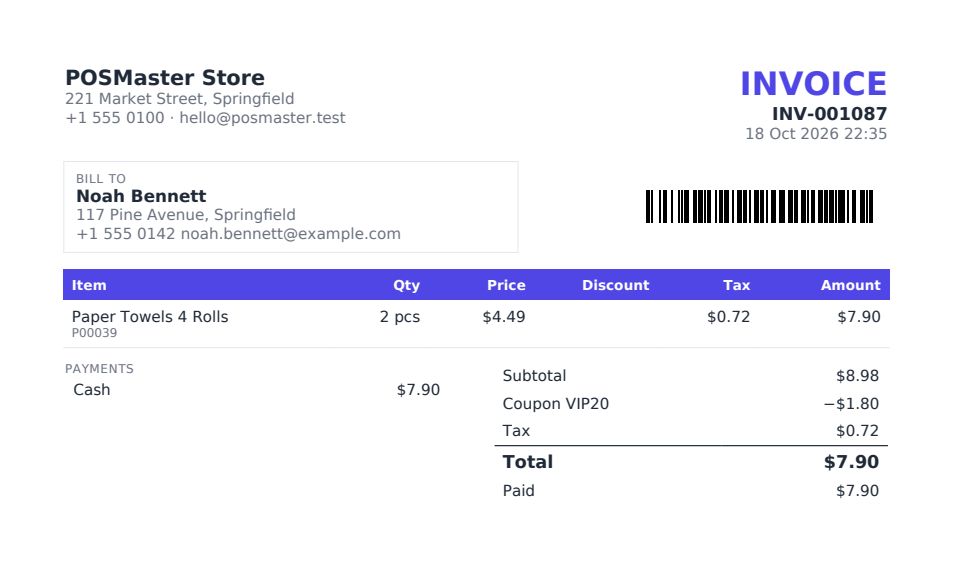
The PDF is an A4 page with:
- your logo, business name, address, phone, email and tax number (the branch address and phone are used when the branch has its own),
- the document title, number, date and status,
- the customer or supplier with their contact details,
- every line with quantity, price, tax and amount (and the discount on invoices and quotations),
- the totals, the payments and the note,
- a barcode of the document number,
- your receipt footer text and page numbers at the bottom.
The PDF is written in the language you are using the app in. Arabic and other right-to-left languages are laid out right to left with correctly joined letters.
Tip: The PDF uses your Theme colour from Settings → Appearance and the footer from Settings → Sales & receipts → Receipt footer text.
Send a document by email
- Open the document and click Email.
- The Send by email window opens. Email address is filled in with the customer's or supplier's address, if they have one. Change it if needed.
- Optionally type a Message (optional). It is added to the email text.
- Click Send.
The document is attached as a PDF. The subject is your business name, the document title and its number (for example My Shop — Invoice INV-000123). The email greets the customer or supplier by name, shows the total and ends with your receipt footer and contact details.
After sending you see one of these messages:
| Message | Meaning |
|---|---|
| Sent to name@example.com. | The email was handed to your mail server. |
| Saved to the mail log (email sending is not set up, or demo mode is on). | Nothing was sent. Settings → Email is set to write to the log, or demo mode is on. |
| The email could not be sent. Check Settings → Email. | The mail server refused the email. The reason is shown in brackets. |
Email the receipt from the POS
After Complete sale, the success window has an email box (Email the receipt to…).
- If the customer has an email address, it is already filled in. Otherwise type it.
- Click Email. The receipt is sent as an invoice PDF.
The box is only shown to users who can view sales (sales.view). It is hidden after an offline sale, because email needs a connection.
Email receipts automatically
An administrator can turn on Settings → Email → Email the receipt automatically after a sale when the customer has an email address. Then every sale to a customer with an email address is emailed at once, and the POS shows Receipt emailed with the address. Sales to walk-in customers, or to customers without an email address, are not emailed.
The setting is off by default. If sending fails, the sale is still saved; you can send the receipt again from the box or from the invoice page.
Set up email sending
You need the settings.edit permission. Go to Settings → Email.
- In Send email with choose SMTP (recommended), or Server sendmail if your host tells you to.
- For SMTP fill in SMTP host, SMTP port, Encryption (TLS (587), SSL (465) or None), SMTP username and SMTP password. Your email provider gives you these values.
- Fill in From address and From name. If you leave them empty, your business email and business name from Settings → Business are used.
- Optionally type an address in Send me a copy (BCC). That address gets a hidden copy of every invoice, receipt and document you email.
- Click Save settings.
- Below the form, type an address in Send a test email to and click Send test email. Check that it arrives (also in the spam folder).
Every field is explained in Settings → Email.
Tip: Use the SMTP details of a real mailbox or an email service (your domain's mailbox, Google Workspace, Microsoft 365, or a transactional service such as Brevo, Mailgun or Amazon SES). Email sent with the hosting server's own sendmail often lands in spam. See Emails are not sent or go to spam.
Note: In demo mode every email is written to the log instead of being sent, whatever the settings say. The Email tab shows a yellow notice about this.